
// Creative Agency
Website Hosting Migration: A 10-Step Checklist for 2026

Website hosting migration means moving your site’s files, database and email-related settings from one hosting company to another, then pointing your domain at the new server. You do not need to move your domain to do it. Done in the right order, with the old site kept running until the new one is tested, visitors never see a gap. This guide gives you the 10 steps in order, the WordPress specifics, the DNS rules that protect your email, and what to test afterward.
TL;DR
- Your domain registration and your hosting are two separate things. You can change hosts without transferring the domain.
- Build and test the new site on the new host first. Change DNS only when the copy is verified, and keep the old hosting active until the switch has settled.
- Update only the website records (A and CNAME) at your DNS provider. Leave MX records alone so business email keeps flowing.
- For WordPress, use a migration plugin or the manual route, and always run a serialized-data-safe search and replace for URLs.
- Test the business, not just the pages: forms, checkout, email, redirects, sitemap and analytics.
Table of Contents
- What hosting migration actually involves
- Before you move: the pre-migration checklist
- Choosing your migration method
- The 10 steps of a website hosting migration
- Migrating WordPress to a new host
- Changing DNS without breaking email
- Zero downtime: what is realistic
- What to test after the move
- Our perspective
- Let us handle the move
- FAQ
- Sources
What hosting migration actually involves
A website lives in three places that people tend to blur together:
- The domain registration, held at a registrar. This is the name you own.
- The DNS records, which tell the internet which server answers for that name and where your email goes.
- The hosting, the server holding your files, database and server settings.
A hosting migration touches the third and changes a few records in the second. The first can stay exactly where it is. If a new provider tells you that you must transfer your domain registration to them before they will host your site, that is a business choice on their side, not a technical requirement. Keep the domain where you control it and treat hosting as a swappable service.
That separation also makes planning easier. You can build, copy and test the new environment under a temporary address while the live site keeps serving customers. Only the final DNS update is visible to the public.
If your move is part of a bigger project, such as a new platform, a new URL structure or a redesign, the stakes are higher because search rankings are involved. In that case read our website migration planning guide alongside this one.
Before you move: the pre-migration checklist
Most migration problems are created in the first hour, by skipping inventory. Work through this list before you buy or touch anything.
- Take a full backup of files and database, and store it somewhere other than the old server. This is your way back.
- Write down every moving part: the CMS and its version, PHP version, plugins, themes, cron jobs, custom server rules, SSL certificate setup and any CDN or firewall in front of the site.
- Find out where your email lives. If it runs through a business suite using your domain, it is separate from the website. If it runs on your old host’s mail server, you need a plan to move mailboxes too.
- Record your current DNS records by screenshot or export. Every A, CNAME, MX and TXT record matters, including verification records for search and analytics tools.
- Identify who controls the DNS. It may be your registrar, your old host or a separate DNS service. You will need login access to whichever it is.
- Check the new plan’s fit. Confirm storage, bandwidth, supported PHP and database versions, backup policy and support hours against what the site actually uses.
- Pick a quiet window. Choose the hours when your traffic and order volume are lowest, and avoid sale periods and campaign launches.
- Do not cancel the old plan. Plan to keep it for at least a couple of weeks after cutover, so you can compare, retrieve anything you missed and roll back.
We also keep a broader website maintenance checklist you can use to turn this inventory into a routine afterward.
Choosing your migration method
There are four realistic ways to move a site. The right one depends on your platform, your site size and how much risk you can tolerate.
| Method | Best for | Effort | Main risk |
|---|---|---|---|
| New host does it for you | Small business sites, owners with no technical staff | Low | Scope: confirm what they move (files, database, email) |
| Migration plugin (WordPress) | Standard WordPress sites of modest size | Medium | Large media libraries and timeouts on cheap plans |
| Manual copy (FTP/SFTP plus database export) | Custom builds, non-WordPress sites, large sites | High | Missed files, wrong database credentials, URL errors |
| Agency-managed migration | Revenue-critical, high-traffic or complex sites | Low for you | Needs a clear brief and access handover |
If your site earns money directly, or if a few hours of errors would cost real customers, the managed route is usually the cheapest in the end. If you are comfortable with files and databases, the manual route teaches you exactly what your site is made of.
The 10 steps of a website hosting migration
1. Set up the new hosting account
Buy the plan and create the environment, but do not point your domain at it. Match the PHP and database versions of the old server first. You can upgrade later, once the site is stable, so you only change one thing at a time.
2. Lower your DNS TTL
TTL is the time, in seconds, that resolvers cache your DNS answers. A day or two before cutover, lower the TTL on the A and CNAME records you will change to a few minutes. When you update them, the world then picks up the new address quickly instead of hours later. This is the single most effective trick for a near-zero-downtime switch.
3. Back up everything
Export the database and download all files, including hidden files such as the server configuration file. Verify the archive opens and that the database file is not empty. A backup you have never inspected is a hope, not a backup.
4. Copy the files
Upload the files to the new server with SFTP, a file manager or a migration tool. Keep the directory structure identical to the old one so relative paths keep working.
5. Create and import the database
Create an empty database and a user on the new host, import the exported file, then update your site’s configuration file with the new database name, user, password and host. Most “error establishing a database connection” messages after a move come from a typo here.
6. Fix URLs and paths
If the site address is changing temporarily or permanently, internal URLs stored in the database must be updated. On a CMS, use a tool built for it rather than a raw text replace, because settings are often stored in serialized form, and a naive replace corrupts them. More on this in the WordPress section below.
7. Test the copy privately
View the new site before DNS changes. The usual method is to edit your computer’s hosts file so your own machine resolves the domain to the new server while everyone else still sees the old one. Click through the site as a customer would.
8. Freeze changes, then do a final sync
If the site takes orders, comments or form entries, the old site keeps collecting data while you test. Just before cutover, pause edits (or put a short maintenance notice on the old site), take a fresh database export and import it again so the new copy is current.
9. Update DNS
Change the A record (and the www CNAME if needed) to the new server’s address. Do not change nameservers unless you intend to rebuild every record at the new place. The next section explains why.
10. Monitor, verify, then retire the old host
Watch uptime, error logs, form deliveries and traffic for several days. When everything is stable and a final backup of the old account is stored safely, cancel the old plan.
Migrating WordPress to a new host
WordPress is the most common platform for this move, and it has two well-trodden routes.
The plugin route
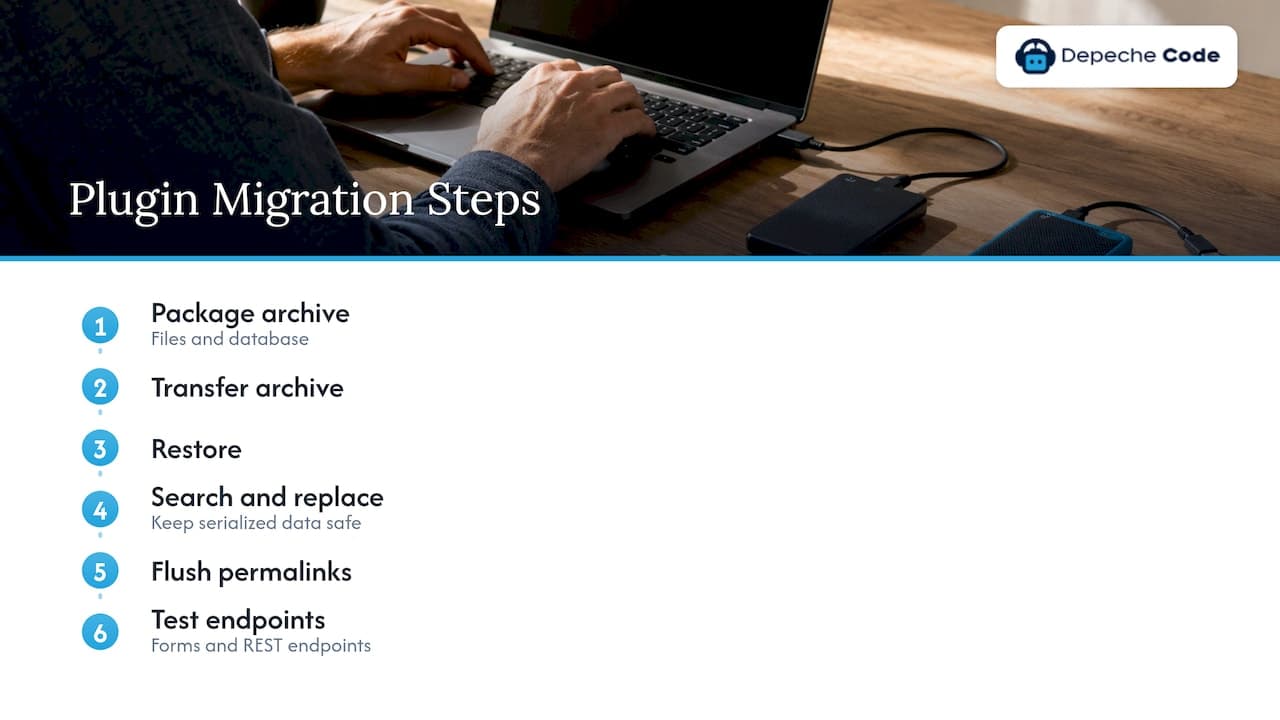
A backup-and-restore plugin packages your files and database into an archive, transfers it to the destination and restores it. According to WP Staging’s migration guide, a careful plugin-based move also confirms the siteurl and home values, runs a search and replace that is safe for serialized data, flushes permalinks, and tests forms and REST endpoints before you call it done.
The plugin route suits most brochure sites, blogs and small shops. It struggles when the media library is huge or the new host has tight execution time limits. In that case, ask the host to raise limits temporarily or switch to the manual route.
The manual route
Duplicator’s manual migration guide lays out the sequence: export the database, download all files, create a database at the destination, upload the files, import the SQL, update wp-config.php, replace URLs safely, test using a hosts-file override, and only then change the domain’s DNS. It matches steps 3 to 9 above.
The same guide highlights the main hazard: WordPress stores much of its configuration as serialized data, so URL replacement should use a WordPress-aware tool, not a raw SQL find-and-replace, or you risk broken layouts and lost settings.
WordPress-specific traps
- Caching and security plugins often write absolute paths into their own config files. Clear and regenerate them on the new server.
- Hard-coded paths in custom themes can break when the directory root differs.
- Scheduled tasks that depended on the old host’s cron need to be recreated.
- Email sending may rely on the old server. Configure an authenticated sending service so password-reset and order emails still arrive.
Once you are on the new host, a regular routine keeps the site healthy. Our guide to WordPress maintenance covers what to schedule.
Changing DNS without breaking email
DNS is where a clean migration most often goes wrong, and the damage usually shows up as lost email rather than a broken site.
The safer path, as Rebuilt Studio explains, is to keep your nameservers at your registrar (or at your existing DNS provider) and update only the A and CNAME records that point to the website. Changing nameservers replaces the whole set of DNS records, including the MX records that route business email, so anything you forgot to recreate simply stops working.
The same source notes that if your email runs through a business suite on your own domain, the MX records are separate from your website records and should be left untouched during a host migration.
A practical DNS routine:
- Export or screenshot all existing records before you start.
- Lower the TTL on the website records two days ahead.
- Change only the A record for the root domain and the record for
www. - Leave MX, SPF, DKIM, DMARC and verification TXT records as they are.
- If you must change nameservers, recreate every record at the new DNS first and compare the two lists line by line.
- Raise the TTL again after the site has been stable for a few days.
Zero downtime: what is realistic
No one can honestly promise literally zero seconds of disruption on every site, because DNS caches around the world refresh on their own schedules. What you can achieve is a cutover where visitors reach either the old or the new server, both showing a working, current copy of the site.
Three habits make that happen:
- Keep both servers live during propagation. Never switch off the old site on cutover day.
- Lower TTL in advance, so the window in which some visitors see the old address is short.
- Freeze content changes and do a final data sync, so orders or form entries are not split across two databases.
For sites with constant transactions, such as a store, the freeze matters most. Schedule the cutover at your quietest hour, put the store in a brief maintenance mode on the old server, sync the final orders, then switch. Be wary of any guarantee phrased as absolute. A realistic commitment is a short, planned window and a written rollback plan.
What to test after the move
A page that loads is not proof of a working business. Duplicator’s post-migration checklist frames testing as an end-to-end exercise covering customer journeys, transactions, email, permissions, SEO signals, analytics and database integrity. For WordPress it adds plugin and theme behavior, media, shortcodes, database counts, XML sitemap, robots settings, redirects, mixed content, file permissions, admin roles and password-reset email.
Turn that into a test sheet:
| Area | What to check |
|---|---|
| Pages and media | Home, top landing pages, images, downloads, embedded video |
| Forms and email | Submit every contact and quote form, confirm delivery, test a password reset |
| Commerce | A full test order, payment, confirmation email, tax and shipping |
| Security | SSL certificate valid, no mixed-content warnings, admin logins work |
| SEO | Sitemap loads, robots settings correct, redirects intact, canonical tags unchanged |
| Tracking | Analytics and ad pixels firing, conversion events recorded |
| Data | Post, page, user and order counts match the old site |
| Performance | Page speed compared with the old host on your key pages |
If any URLs changed, verify your redirects. Our 301 redirect mapping checklist walks through building and testing them, and our CMS migration SEO checklist covers ranking protection in more depth.
How to recover if something breaks
Decide your rollback trigger before cutover: for example, checkout failing or forms not delivering for more than an hour. Because you kept the old hosting live and the old DNS records saved, rolling back is a matter of pointing the A record back to the old address. With a low TTL, that reverses quickly. Fix the problem on the new server, then repeat the cutover.
Our perspective
We see the same pattern on migrations that go badly: the files were copied correctly, but nobody inventoried email, DNS records or form integrations beforehand. The technical copy is the easy part. The planning around it is what protects a business.
Our approach is to treat every move as a small project with a written inventory, a private test copy, a scheduled cutover and a rollback plan. We use in-house directed AI to speed up repetitive work such as comparing record sets and checking page parity, and we measure the result with Google PageSpeed and SEO scores so you can see the outcome. You also own every deliverable, which means your site, files and records stay yours.
If you run a business and would rather spend the weekend on customers than on database credentials, hand it to a team that does this regularly. Pair the move with proper hosting and maintenance afterward and the site stays fast and patched without you thinking about it.
Donovan Wells - Founder and CEO
Let us handle the move
If you would rather not manage DNS records and database imports yourself, our team can plan and run the migration, then look after the site afterward. For WordPress, our dedicated hosting starts from $39 per month and our maintenance from $99 per month, so the move and the upkeep sit with one team. Start on our services page or read our guide to managing website hosting for business success to compare what you need.

FAQ
Do I have to transfer my domain to move my website to a new host?
No. Your domain registration and your hosting are separate services. You keep the domain at your registrar and only update the DNS records that point to the new server. Transferring the registration is optional and can be done at any time as its own project.
How long does a website hosting migration take?
A small brochure site can be copied and tested in an afternoon, while larger sites and stores usually need a few days of preparation and testing. After you change DNS, most visitors reach the new server within minutes if you lowered the TTL beforehand, though some caches can lag longer. Keep the old host active throughout.
Will migrating hosts hurt my SEO?
A clean move with unchanged URLs, working redirects, a valid sitemap and correct robots settings should not harm search visibility, and a faster server can help. Problems appear when URLs change, redirects are missing or the new site accidentally blocks crawlers. Check these items first on your test list.
What happens to my email when I change hosts?
If your email runs through a business suite on your own domain, it is controlled by MX records, which you should leave untouched while updating only the website records. If email is hosted on the old server, move the mailboxes before you cancel the plan.
Should I migrate WordPress with a plugin or manually?
A plugin is quicker for standard sites of modest size. The manual route gives you more control for large or heavily customized sites. Either way, use a URL replacement tool that handles serialized data and test on the new server before changing DNS.
Sources
- How to Migrate WordPress to a New Host (2026 Guide), WP Staging
- How to Migrate WordPress Manually (9 Steps), Duplicator
- The Complete Post-Migration WordPress Testing Checklist, Duplicator
- How do I switch web hosts without breaking my site?, Rebuilt Studio