

TL;DR:
- Building web forms requires a clear purpose and optimized design to maximize conversions and data collection. Using native HTML, proper validation, and minimal fields improves user experience and submission rates. No-code or AI-powered builders allow rapid deployment without backend setup for immediate needs.
Building web forms is the process of creating online interfaces that collect user input efficiently and reliably for websites and applications. A well-built form is one of the highest-leverage assets on any website. Field reduction drives nearly 50% more conversions, which means the structure of your form directly determines how much data you collect and how many leads you close. Whether you use raw HTML, JavaScript enhancements, or no-code builders like Typeform or Gravity Forms, the fundamentals of creating online forms stay the same: clear purpose, minimal friction, and solid data handling.
How to build web forms: prerequisites and tools
Before writing a single line of code or dragging a field into a builder, define what the form needs to accomplish. A contact form, a checkout form, and a survey each require different field sets, validation rules, and backend endpoints. Skipping this step produces bloated forms that confuse users and drop submission rates.
The native HTML <form> element provides built-in submission handling, autofill support, and graceful degradation without extra scripts. That makes it the right foundation for any web form, regardless of what you layer on top. The two attributes you set first are method (GET or POST) and action (the URL that receives the data).
Core tools every developer needs:
- A code editor: Visual Studio Code or Sublime Text for hand-coded forms
- A browser with developer tools: Chrome DevTools or Firefox Developer Tools for inspecting submissions and debugging
- A form testing tool: Postman for verifying server-side endpoints receive the correct payload
- A no-code or low-code builder: options like Typeform, Gravity Forms, or Formstack for rapid deployment without backend setup
- A server-side handler: a PHP script, a Node.js endpoint, or a third-party service like Formspree for processing submissions
Choosing between coding and no-code:
| Approach | Setup time | Customization | Backend required |
|---|---|---|---|
| Hand-coded HTML | Hours to days | Full control | Yes |
| No-code builder | Under 5 minutes | Limited to templates | No |
| AI-powered builder | Under 5 minutes | Moderate | No |
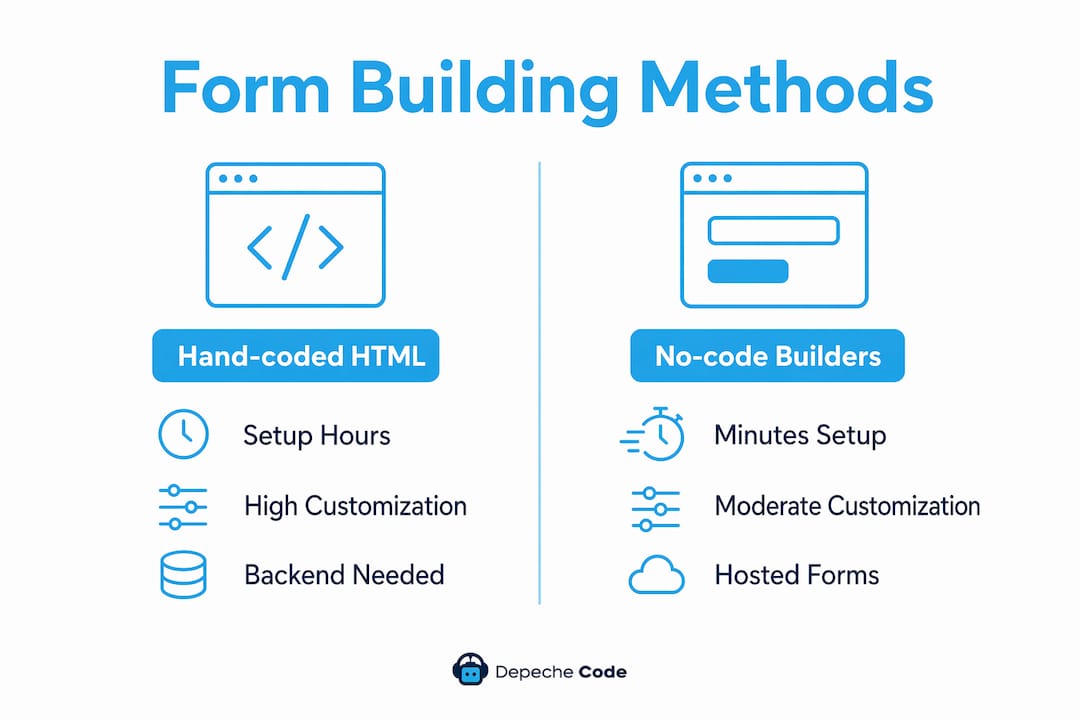
No-code and AI-powered builders generate functional hosted forms in under 5 minutes and require no server configuration. That speed makes them the right call for businesses that need a working lead form today, not next sprint.
How do you design a web form that maximizes submission rates?
Form design is not about aesthetics. It is about guiding user behavior from the first field to the submit button without creating a single moment of doubt or frustration.

The most direct design lever is field count. Reducing fields from four to three increases conversion rates by nearly 50%. Every field you add is a reason for a user to stop. Audit each field before you build: if you can collect that data after the submission through a follow-up email or onboarding flow, remove it from the form.
Web form design tips that move the needle:
- Use a single-column layout. Multi-column forms force users to scan horizontally, which increases cognitive load and error rates.
- Group related fields into logical sections and add progress indicators on longer forms. Grouped sections and progress bars increase usability and completion rates.
- Mark only optional fields as “(optional)” in labels. When most fields are required, labeling the exceptions reduces visual clutter.
- Place labels above their inputs, not beside them. Above-field labels work on every screen width without truncation.
- Use native input types:
type="email"triggers the correct mobile keyboard and browser validation automatically.
Validation timing has a measurable impact on completion. On-blur inline validation increases form completion rates by about 22%. Real-time keystroke validation, by contrast, decreases completion by 8–12% because it interrupts users mid-thought. Trigger validation only after a user leaves a field, not while they are still typing.
Mobile optimization is non-negotiable. Tap targets need to be at least 44px tall. Input fields should expand to full width on small screens. Autocomplete attributes like autocomplete="email" and autocomplete="tel" let browsers pre-fill data, which cuts the effort users spend on repetitive fields.
Pro Tip: Defer non-essential data collection to a follow-up email or onboarding sequence. Asking for a phone number or company size after a user has already converted costs you nothing and removes a barrier at the point of highest friction.
What are the step-by-step technical steps to build and deploy a web form?
A working form requires correct HTML structure, proper attribute assignment, client-side validation, and a reliable submission endpoint. Each step builds on the last.
-
Write the
<form>element. Setmethod="post"for any form that collects sensitive data. Setactionto your server endpoint or a service like Formspree. A GET form appends data to the URL, which is appropriate only for search forms. -
Add inputs with
idandnameattributes. Thenameattribute is what the server reads. Missing name attributes cause browsers to silently drop fields from the submission payload, even when the user filled them in. Every input needs bothid(for label association) andname(for data submission). -
Associate labels explicitly. Use explicit
for/idpairing rather than wrapping inputs inside label tags. Explicit pairing avoids styling conflicts and works correctly with screen readers. Example:<label for="email">Email</label><input id="email" name="email" type="email">. -
Add client-side validation with the Constraint Validation API. Use the
requiredattribute for mandatory fields. Usepatternfor custom formats. Useminlengthandmaxlengthfor text fields. The browser handles basic validation without a single line of JavaScript. -
Add server-side validation. Server-side validation is the trust boundary. Client-side validation is a UX layer only. Never rely on browser validation to block malicious or malformed data from reaching your database.
-
Deploy and test. Submit the form and inspect the network request in Chrome DevTools under the Network tab. Confirm the payload contains every field with the correct name and value. Test on iOS Safari and Android Chrome, not just desktop browsers.
Pro Tip: For a fast deployment without backend setup, connect your HTML form’s action attribute to a Formspree or Netlify Forms endpoint. You get email notifications and a submission dashboard with zero server configuration.
Coding vs. no-code vs. AI-powered builders:
| Factor | Hand-coded HTML | No-code builder | AI-powered builder |
|---|---|---|---|
| Setup speed | Slow | Fast | Fastest |
| Design control | Full | Moderate | Moderate |
| Backend needed | Yes | No | No |
| Accessibility control | Full | Partial | Partial |
| Best for | Developers | Small businesses | Solopreneurs |
For businesses that need forms integrated into a custom site with specific backend logic, hand-coded HTML with a server endpoint is the right path. For a lead capture page that needs to go live today, a no-code builder wins on speed. You can also explore AI tools for solopreneurs that include form generation as part of a broader site-building workflow.
How do you troubleshoot and optimize web forms to improve completion rates?
Most form failures trace back to a small set of repeatable mistakes. Fixing them does not require a redesign. It requires a methodical audit.
Common mistakes that kill completion rates:
- Missing
nameattributes. This is the most silent and damaging error. The form submits, the server receives nothing, and no error appears in the browser. Check every input before deployment. - Over-validation. Rejecting phone numbers with spaces or dashes, or requiring a specific date format without telling the user, creates unnecessary friction. Accept common input variations and clean the data server-side.
- Disabled submit buttons. Disabling submit buttons breaks accessibility and confuses users who do not understand why they cannot proceed. Show inline errors instead of blocking the button.
- Vague error messages. “Invalid input” tells the user nothing. “Please enter a valid email address, like name@example.com” tells them exactly what to fix.
- No autofill support. Skipping
autocompleteattributes forces users to type data their browser already knows. Addautocomplete="given-name",autocomplete="email", andautocomplete="tel"to the relevant fields.
Use the browser’s Network tab to inspect what the form actually sends on submission. Compare the payload to what your server expects. Discrepancies here reveal missing name attributes, incorrect action URLs, or encoding issues.
For longer forms, progress indicators and partial save features reduce abandonment by showing users how far they have come. A user who sees “Step 2 of 3” is far more likely to finish than one staring at an unmarked wall of fields.
Accessibility testing belongs in every deployment checklist. Run your form through the WAVE accessibility tool or axe DevTools. Confirm that every field has a visible label, that error messages are announced by screen readers, and that the tab order follows the visual layout. A form that fails accessibility also fails a segment of your users and, in some industries, legal compliance standards.
Cross-browser testing matters more than most developers expect. Test on Safari, Firefox, and Chrome on both desktop and mobile. Input type behavior, date pickers, and validation styling vary across browsers in ways that can break the user experience silently.
Key takeaways
Effective web forms combine correct HTML structure, minimal field count, and on-blur validation to maximize both accessibility and submission rates.
| Point | Details |
|---|---|
| Field count drives conversions | Reducing fields from four to three increases conversions by nearly 50%. |
| On-blur validation wins | Triggering validation after a user leaves a field boosts completions by about 22%. |
| Name attributes are critical | Missing name attributes silently drop field data from submissions without any error. |
| Server-side validation is mandatory | Client-side validation improves UX; server-side validation protects your data. |
| No-code tools deploy in minutes | AI-powered and no-code builders create hosted forms in under 5 minutes with no backend. |
What I have learned from building forms that actually work
Most developers treat form building as a checkbox task. Write the HTML, add some validation, ship it. That mindset produces forms that technically work but quietly bleed conversions.
The insight that changed how I approach this: native HTML forms are more capable than most developers realize. The Constraint Validation API, autofill, and graceful degradation are all built in. JavaScript should enhance native behavior, not replace it. When you build a form that depends entirely on a JavaScript framework to function, you create a single point of failure. A script error or a slow connection breaks the whole experience.
The second thing I have learned is that form success comes from behavioral UX, not visual polish. Field sequence matters. Error handling matters. The order in which you ask questions affects whether users answer them. Start with the easiest fields to build momentum, then ask for more sensitive information like a phone number or budget range after the user is already invested.
The third lesson is the hardest to apply consistently: audit every field for necessity. Every time I have pushed a client to remove a field they insisted was essential, the form performed better. The instinct to collect more data upfront is almost always wrong. Collect what you need to take the next step, nothing more.
If you are building forms for a professional services website, the stakes are higher than a simple contact form. Your form is often the first real interaction a prospect has with your business. A confusing or broken form signals the same thing about your services.
— Donovan
Web form integration made simple with Depechecode
Building a form that looks right, works on every device, and connects to a reliable backend takes more time than most businesses plan for. Depechecode handles the full process, from field structure and validation logic to backend setup and mobile testing, as part of its website design and development service.

The team at Depechecode builds forms that are accessible, fast to load, and connected to the right data endpoints from day one. Whether you need a simple contact form or a multi-step lead capture flow, Depechecode delivers a working solution without the back-and-forth of a DIY build. Businesses that want a responsive, professionally built site with forms that convert can get started directly through the Depechecode website.
FAQ
What is the most important HTML attribute in a web form?
The name attribute on every input is the most critical. Missing name attributes cause browsers to silently drop field data from the submission payload, even when users have filled in the fields.
How many fields should a web form have?
Keep forms as short as possible. Reducing fields from four to three increases conversion rates by nearly 50%, so include only the fields needed to take the immediate next step with the user.
What is the difference between client-side and server-side validation?
Client-side validation runs in the browser and gives users fast feedback. Server-side validation runs on your server and is the only reliable defense against malformed or malicious data.
Can I build a web form without coding?
Yes. No-code and AI-powered builders like Typeform, Gravity Forms, and Formstack generate functional hosted forms in under 5 minutes with no server configuration required.
When should I trigger inline validation on a form?
Trigger validation on-blur, meaning after the user leaves a field, not during typing. On-blur validation increases form completion rates by about 22%, while real-time keystroke validation decreases completion by 8–12%.