

Yes, almost every WordPress site benefits from pairing an edge CDN with a caching plugin. Edge caching cuts the distance between your server and your visitors, which WordPress’s own performance documentation ties directly to faster load times and lower server strain. Follow the setup checklist below to configure one correctly the first time.
TL;DR:
- Free tiers can serve smaller, lower traffic sites, while paid plans usually offer broader edge coverage, purge APIs, and finer cache controls as complexity grows.
- Set long TTLs for versioned images and compiled files, but use short TTLs or no edge caching for frequently updated HTML.
- Exclude authenticated sessions, carts, checkout, account pages, and WordPress admin and REST API routes from edge HTML caching; static assets can still use the CDN.
- Configure plugin purge hooks or API calls to clear edge copies after each post update; otherwise, stale pages can persist until their TTL expires.
- Verify CDN delivery through response headers, configured TTL values, and before and after Lighthouse or PageSpeed tests; test responsive image URLs too.
Table of Contents
- Why use a CDN for WordPress: speed, reliability, and Core Web Vitals
- How CDNs work for WordPress: edge caching, POPs, and invalidation
- What to look for in a CDN for WordPress: features and cost
- Step-by-step setup for WordPress: DNS, plugins, and verification
- Integrating CDNs with WordPress caching plugins and hosting
- Troubleshooting common caching problems
- Depeche Code’s perspective and implementation approach
- Handling dynamic content caching and personalization with a CDN
- Impact of CDN on SEO beyond Core Web Vitals
- What the conventional CDN advice gets wrong
- Get managed CDN and hosting setup without the trial and error
- FAQ
- Sources
Why use a CDN for WordPress: speed, reliability, and Core Web Vitals
A content delivery network stores copies of your site’s files on servers positioned closer to your visitors, so a reader in Singapore does not wait on a response from a server in Virginia. That shorter trip, often called reduced latency or time to first byte, is the main reason WordPress sites add a CDN in the first place. The WordPress developer documentation describes this edge delivery as a direct way to lower server load and improve overall site performance.
Beyond speed, a CDN acts as a buffer between your visitors and your origin server. When a post goes viral or a sale page gets a traffic spike, the CDN absorbs most of the requests for images, scripts, and stylesheets, so your hosting plan never sees the full load. That protects uptime during exactly the moments when uptime matters most.
The payoff shows up in Core Web Vitals and, eventually, in revenue. A Web found that performance work, including caching and asset delivery improvements, produced measurable gains in Core Web Vitals scores and in conversion metrics. That case study is a useful reminder that CDN adoption is not purely a technical checkbox. It is an investment with a business return, which is why we treat it the same way when we plan performance work for clients.
A few practical benefits worth naming:
- Faster global load times: visitors far from your origin server get assets from a nearby edge location instead of a distant data center.
- Reduced origin load: static files are served from the edge, freeing your hosting resources for dynamic requests.
- Better resilience under traffic spikes: the CDN layer absorbs sudden surges instead of passing them straight to your server.
- Stronger Core Web Vitals signals: faster asset delivery contributes to better Largest Contentful Paint and Interaction to Next Paint scores.
Most WordPress sites can see meaningful speed gains from edge delivery, according to WordPress’s performance guidance, which identifies CDN use as a core optimization step alongside caching and image compression.
Free CDN tiers exist and can work for smaller or lower-traffic sites, but they typically come with fewer points of presence, limited support, and basic feature sets. Paid tiers generally add broader edge networks, purge APIs, and finer control over caching behavior, which matters more as your traffic and page complexity grow.
How CDNs work for WordPress: edge caching, POPs, and invalidation
To configure a CDN correctly, it helps to understand what happens between a visitor’s click and the page appearing on their screen.
A CDN operates through a network of points of presence, or POPs, geographically spread servers that each hold a cached copy of your site’s assets. When someone requests your homepage, the CDN checks whether the nearest POP already has a valid cached copy. If it does, that is a cache hit and the file is served instantly from the edge. If not, the CDN fetches the file from your origin server, serves it, and stores a copy for the next visitor. By default, most CDNs cache static assets: images, CSS, JavaScript, fonts, and sometimes full HTML pages, while leaving dynamic requests like logged-in sessions or form submissions to pass through to the origin.
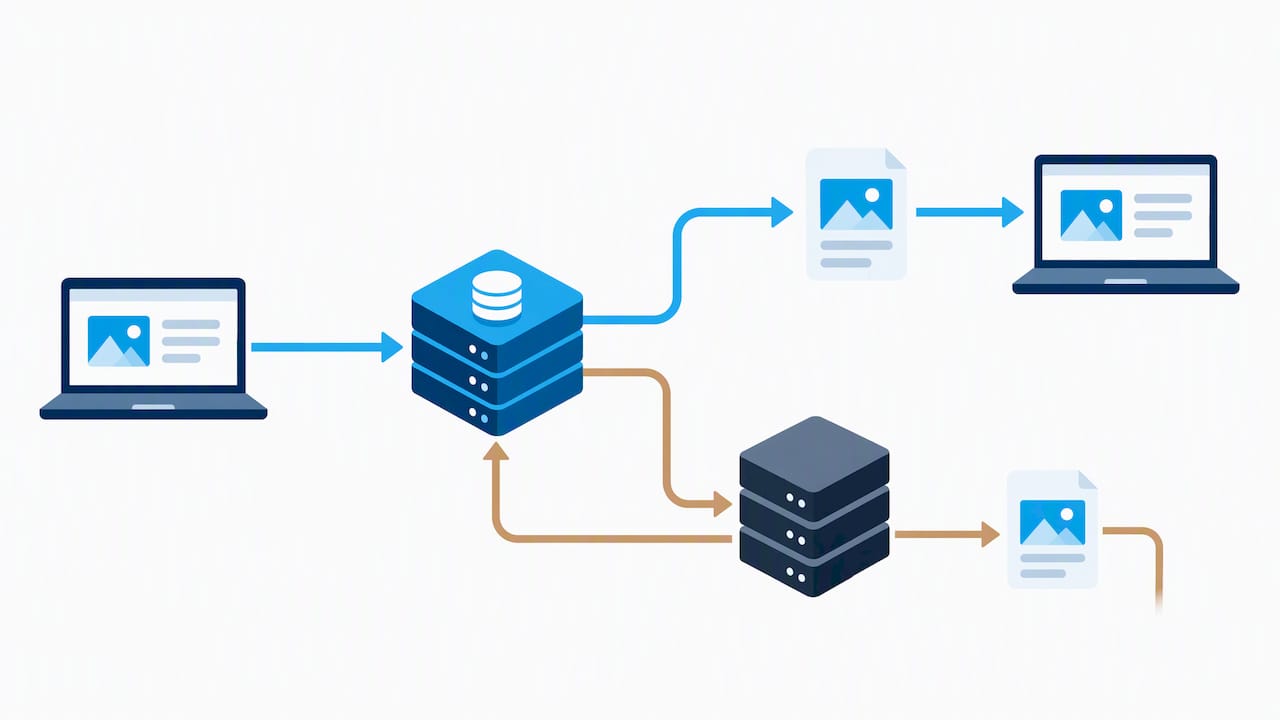
Whether a request counts as a cache hit depends on the cache key, the combination of factors the CDN uses to decide if two requests are “the same” page. Query strings, cookies, and certain headers can all affect this. A URL with a tracking parameter such as ?utm_source=newsletter may generate a separate cache entry from the clean URL unless the CDN is configured to ignore that parameter. Cookies used for session identification or A/B testing can also fragment the cache if not handled carefully, leading to lower hit rates and more origin requests than expected.
Three concepts control how long content stays cached and how you clear it when it changes:
- TTL (time to live): the duration a cached file remains valid before the CDN checks the origin again, often set per file type so images might cache for weeks while HTML caches for minutes or not at all.
- Cache-Control headers: directives sent by your origin server that tell the CDN (and browsers) how to cache a given resource; web.dev’s caching guidance recommends using these headers deliberately rather than relying on default browser caching alone.
- Purge or invalidation: the process of manually clearing cached content before its TTL expires, typically done through an API call, a plugin hook, or by renaming the asset (cache-busting) so the old cached version is never requested again.
Getting these three right is the difference between a CDN that quietly speeds up your site and one that serves outdated content to half your visitors after every update.
What to look for in a CDN for WordPress: features and cost
Not every CDN offers the same feature set, and the right choice depends on how complex your site is and how much control you want over caching behavior. A few features matter more than the rest for WordPress specifically.
- Edge HTML caching: caching full pages at the edge, not just static assets, for the biggest speed gains on content-heavy sites.
- A purge API: programmatic cache invalidation that your WordPress plugins or deployment pipeline can trigger automatically after content changes.
- Modern protocol support: TLS 1.3, HTTP/2, and HTTP/3 reduce connection overhead, particularly on mobile networks.
- Compression: Brotli or Gzip support shrinks file sizes before they ever reach the visitor’s browser.
- Image optimization at the edge: automatic format conversion (to WebP or AVIF) and resizing without extra plugins on your origin.
- Origin shield: an additional caching layer that protects your server from repeated requests when multiple edge locations miss the cache at once.
On the operational side, check whether the provider gives you readable analytics and logs, since you will want to see hit ratios and bandwidth use without digging through raw data. Look at how many POPs the network has and whether they cover the regions your actual visitors come from, not just the regions with the most POPs overall. Support responsiveness and onboarding documentation matter too, especially if your team is configuring this without dedicated DevOps help.
Pricing models vary. Some providers charge by bandwidth or egress (the data leaving their network), which can become unpredictable for media-heavy sites with unexpected traffic spikes. Others charge by request volume, which tends to be more predictable for sites with many small files. A few cloud platforms, like Azure’s CDN product, bundle edge caching, compression, and image handling into tiered plans, which is worth comparing against pure bandwidth pricing before committing.
Pro Tip: Ask any CDN provider for a sample invoice or usage report from a site similar in size to yours before signing up. Estimated costs and actual costs can differ once real traffic patterns kick in.
Step-by-step setup for WordPress: DNS, plugins, and verification
Once you have picked a CDN, the setup itself follows a predictable sequence. Here is the order that avoids the most common mistakes.
- Sign up and add your domain. Most CDN providers ask you to add your site’s domain and will scan your existing DNS records automatically.
- Update your DNS. You will either point a CNAME record to the CDN’s hostname (for a subdomain approach like
cdn.yoursite.com) or change your nameservers to route all traffic through the CDN’s proxy. Keep a backup of your original DNS records so you can roll back quickly if something breaks. - Connect a CDN plugin or configure URL rewriting. Plugins such as CDN Enabler rewrite your site’s asset URLs so images, CSS, and JavaScript load from the CDN hostname instead of your origin domain.
- Check your srcset and media URLs. WordPress generates multiple image sizes for responsive display, and your CDN or plugin needs to rewrite all of those URLs consistently, not just the main image source, or you will get mixed loading behavior across devices.
- Set Cache-Control headers and TTLs by file type. Long TTLs (weeks or months) make sense for versioned static files like images and compiled CSS/JS. Shorter TTLs, or no edge caching at all, make more sense for HTML on frequently updated pages.
- Enable edge optimizations. Turn on Brotli or Gzip compression and HTTP/3 support if your provider offers them; these are usually a single toggle in the dashboard.
- Verify the setup. Load your site in a browser’s developer tools, check the Network tab, and confirm asset URLs are now pointing to the CDN hostname.
A few things to check during verification:
- Response headers: look for a header like
CF-Cache-Status,X-Cache, or similar, which confirms whether a request was served from the edge or passed through to origin. - TTL confirmation: the
Cache-ControlorAgeheader on a cached asset should match what you configured. - Lighthouse or PageSpeed Insights scores: run your homepage and a content-heavy page through Web before and after enabling the CDN to confirm the improvement.
If a rollback becomes necessary, reverting the CNAME or nameserver change and deactivating the plugin restores the original request path within the time it takes DNS to propagate, typically under an hour for most providers. Our Core Web Vitals guide covers the metrics worth tracking once your CDN is live, and our speed optimization roadmap walks through prioritizing fixes if results fall short of expectations.
Integrating CDNs with WordPress caching plugins and hosting
The cleanest architecture for most WordPress sites uses the CDN for static assets and, where appropriate, full-page HTML caching at the edge, while a local caching plugin handles fragment caching and dynamic content rules closer to the application layer. Running both without coordination is where most caching headaches start.
- Let the CDN handle static files first: images, CSS, JavaScript, and fonts rarely change per visitor, so they are the safest candidates for long edge TTLs.
- Use plugin hooks to trigger purges: when a post is updated or published, your caching plugin should fire a purge request to the CDN automatically rather than waiting for a TTL to expire.
- Watch for webhook or API-based purge options: many CDN providers expose a purge endpoint that plugins or deployment scripts can call directly, which is faster and more reliable than manual purging.
- Treat logged-in sessions differently: pages served to logged-in users, including WooCommerce carts and account pages, generally should bypass edge HTML caching entirely to avoid serving one visitor’s data to another.
- Exclude REST API and admin routes:
/wp-json/and/wp-admin/paths should never be cached at the edge, since they handle dynamic, often authenticated requests.
On larger or server-managed deployments, pairing the CDN with server-level caching like Nginx’s fastcgi_cache can add another layer of speed for logged-out traffic, though WordPress’s Nginx documentation notes this requires careful configuration to avoid caching content meant for individual, authenticated users. For multisite networks, each subsite’s cache keys need to be distinct enough that the CDN does not accidentally serve one subsite’s page under another’s URL, which is a common misconfiguration when subsites share a parent domain pattern.
Troubleshooting common caching problems
Most CDN issues on WordPress trace back to one of three causes: stale content, failed purges, or header mismatches. Here is a short diagnostic sequence.
- Confirm whether the request hit the edge or the origin. Check response headers like
X-CacheorCF-Cache-Statusin your browser’s developer tools; a miss means the request reached your origin server, which is expected right after a purge but a problem if it persists. - Decide between an API purge and cache-busting. An API purge clears the existing cached version immediately and is best for content updates. Cache-busting, renaming a file so its URL changes, works better for assets you update frequently, like a logo or a frequently edited image, since it avoids relying on purge timing.
- Test the fix before assuming it worked. Reload the affected page in a private browser window and check the response headers again to confirm the new version is being served from the edge.
Mixed content warnings usually mean an asset is loading over HTTP while the page loads over HTTPS, often because the CDN hostname was not updated to match your TLS certificate. CORS errors typically appear when fonts or scripts are requested cross-origin from the CDN domain without the right Access-Control-Allow-Origin header configured on the CDN side. Srcset mismatches, where some image sizes load from the CDN and others do not, usually point to a plugin that only rewrote the main image URL and missed the responsive variants.
Pro Tip: Keep a plain-text log of every DNS and header change you make during setup. When something breaks three weeks later, that log turns a guessing game into a five-minute fix.
Depeche Code’s perspective and implementation approach
We handle WordPress hosting, maintenance, and performance work as part of our regular service lineup, so CDN configuration is not a one-off project for us, it is part of how we set up sites we manage. When we take on a performance engagement, we pair edge caching with a server-side caching plugin, automate purge triggers through plugin hooks and API calls so content updates clear instantly, and confirm the result with before-and-after Core Web Vitals testing rather than assuming the setup worked.
That verification step matters more than most site owners expect. A CDN that is technically “on” but misconfigured, caching logged-in pages, missing purge hooks, or serving stale images, can do more harm than having no CDN at all. We treat the testing phase as a required step, not an optional extra, for every WordPress site we configure.
Handling dynamic content caching and personalization with a CDN
Not every page on a WordPress site should be cached the same way. Product pages with live inventory counts, personalized recommendation blocks, and shopping cart pages all change per visitor or per session, which makes naive edge caching risky.
The common approach is to cache the page shell at the edge while leaving personalized fragments, like a cart total or a “recently viewed” widget, to load separately through an API call or client-side JavaScript after the cached page renders. This pattern, sometimes called edge-side includes or fragment caching, lets most of the page benefit from edge speed while the personalized piece stays current.
For simpler setups, the safer default is to exclude dynamic paths from edge HTML caching entirely, cart pages, checkout flows, and account dashboards among them, while still caching the static assets those pages load. Cloudflare’s documentation on automatic platform optimization describes this kind of bypass rule as necessary for e-commerce and membership sites specifically, since caching a personalized page for the wrong visitor is a worse outcome than a slightly slower load.
Cookies and session headers are usually the trigger a CDN uses to detect a request it should not cache. Confirming that your CDN correctly recognizes your WordPress login cookie and your e-commerce platform’s session cookie is worth testing directly rather than assuming the default configuration covers it.
Impact of CDN on SEO beyond Core Web Vitals
Core Web Vitals get most of the attention, but a CDN affects search visibility in a couple of other ways worth knowing about.
Faster response times can improve how efficiently search engine crawlers use their allotted crawl budget on your site. When pages load quickly and reliably, crawlers can process more URLs in the same amount of time, which matters more for larger sites with thousands of pages than for a five-page brochure site.
Some CDN providers also offer geo-based routing, serving different edge locations based on visitor location, which can incidentally improve load times for international audiences even without a dedicated multi-region hosting setup. This is distinct from geo-targeting for ranking purposes, which search engines determine primarily through domain structure, hreflang tags, and content language rather than CDN routing.
Reliability matters too. A CDN that keeps your site responsive during traffic spikes, like a surge in referral traffic or a popular social share, helps avoid the kind of downtime or slow response that can affect how search engines perceive your site’s reliability over time. Our Core Web Vitals SEO guide covers how these technical signals connect to ranking factors in more detail.
What the conventional CDN advice gets wrong
Most guides treat CDN setup as a one-time configuration task: flip the switch, confirm the padlock icon still shows up, move on. That advice undersells the ongoing coordination a CDN actually requires. The real work is in the purge workflow, making sure every content update, every plugin change, every new product image actually clears the right cache entries, not just the initial DNS change.
The other blind spot is treating all pages the same. A blog post and a checkout page have completely different caching needs, and applying one caching rule set to both is how sites end up either serving stale content or getting almost no benefit from the CDN they paid for.
If you take one thing from this article, prioritize the purge and invalidation workflow before you worry about picking the “best” CDN brand. A mediocre CDN with reliable automated purging will outperform a premium CDN that nobody remembers to clear after every update.
— Donovan Wells – Founder and CEO
Get managed CDN and hosting setup without the trial and error
Configuring a CDN correctly takes some back-and-forth testing, header checks, and purge-hook debugging that most business owners would rather not spend a weekend on. We handle that setup as part of our WordPress hosting and maintenance plans, starting with dedicated hosting at $39 per month, configuring edge caching, purge automation, and Core Web Vitals verification so your site is fast on day one and stays that way after every update.

Onboarding starts with a quick review of your current hosting and traffic patterns, followed by DNS and plugin configuration on our end, then a verification pass using the same testing approach outlined above. Browse our full services lineup to see how performance work pairs with our other offerings, or reach out to get your WordPress site reviewed.
FAQ
Does Google use a CDN?
Google serves many of its own products and services through globally distributed infrastructure that functions similarly to a commercial CDN, including edge caching and regional data centers. This is separate from whether CDN use affects your search rankings, which depends more on actual page speed and reliability than on which specific CDN you choose.
Is there a replacement for Cloudflare that is compatible with WordPress?
Several CDN providers work with WordPress through plugins like CDN Enabler or through DNS-level configuration, and the right choice depends on your traffic volume, budget, and need for features like edge HTML caching. Evaluate options against the feature checklist covered earlier, purge API, TLS support, and compression, rather than picking based on name recognition alone.
What CDN does Shopify use?
Shopify’s platform-specific CDN choices are not publicly detailed in a way we can verify, and that detail does not change how a CDN should be configured for a self-hosted WordPress site. WordPress site owners should focus on CDN compatibility with their own hosting and plugin stack rather than matching another platform’s infrastructure choice.
Can I use a CDN for free?
Yes, several CDN providers offer free tiers that cover basic static asset caching, which can meaningfully speed up smaller or lower-traffic WordPress sites. Free tiers typically come with fewer points of presence and limited support compared to paid plans, which matters more as a site’s traffic and complexity grow.
How do I know if my CDN is actually working?
Check your browser’s developer tools for cache status headers like X-Cache or CF-Cache-Status on asset requests, and confirm TTL values match what you configured. Running your site through web.dev’s testing tools before and after setup gives a clear before-and-after comparison of load times and Core Web Vitals scores.