

Google Business Profile posts are short updates, offers, or event listings that appear on your listing in Search and Maps, and if you run a local business, it is recommended to publish posts regularly to keep your profile active. Posts don’t carry the ranking weight of reviews or citations, but they keep your profile active, give customers a reason to click through, and now feed the AI summaries Google surfaces in Search. Publish real photos, a clear call to action, and a fresh update on a set schedule, and the effort pays for itself in visits and calls.
TL;DR:
- Regularly scheduled posts that include specific, timely offers or events with real photos and clear CTAs can improve customer engagement and traffic.
- Using native scheduling tools and the API supports recurring posts across multiple locations, but automation requires proper link tagging and monitoring.
- Posts with vague content or unrelated images tend to perform poorly; authenticity and specificity, such as naming actual products or dates, drive better results.
- Most post rejections stem from broken links, prohibited content, or unverified claims; promptly editing and resubmitting can speed up approval.
- Measuring post performance requires adding UTM parameters to links and analyzing CTA clicks in Google Analytics, as native insights lack detailed attribution.
Table of Contents
- What Are Google Business Profile Posts and Where Do They Appear?
- How Do You Create, Schedule, and Manage a Post?
- What Makes a Google Business Profile Post Actually Work?
- Should You Schedule Posts or Automate Them?
- How Do You Measure Whether Your Posts Are Working?
- Why Do Posts Get Rejected, and How Do You Fix It?
- How Depeche Code Approaches Posting for Local Clients
- The Overlooked Trap in Most Google Business Profile Advice
- Get Help Managing Your Google Business Profile
- Where to Find the Official Rules and Deeper Guides
- Sources
- FAQ
What Are Google Business Profile Posts and Where Do They Appear?
Google gives you three post types, and picking the wrong one wastes the extra fields Google built for it. An Update is the general-purpose post: text, a photo or video, and an optional link. An Offer requires a title and start/end dates, and Google automatically adds a “View offer” button, plus room for a coupon code and terms. An Event post takes a name, start and end dates, and optional times, so it’s built for a sale weekend, a class, or a grand opening rather than a evergreen announcement.
Each type supports text, photos, or videos, but the metadata fields are what separate them. Skip the Offer format for a plain announcement and you lose the coupon field and the built-in button that tends to pull more clicks than a generic “Learn more” link.
Where posts show up depends on the device and the surface:
- Mobile Search and Maps: under the “Updates” or “Overview” tab on your Business Profile, often as a swipeable carousel.
- Desktop Search: in a “From the owner” module beside your knowledge panel.
- Maps app: in the same Posts carousel, usually below your photos and reviews.
- Knowledge Panel (branded searches): posts can appear directly when someone searches your business name.
Posts display in reverse chronological order, so your newest post takes the top slot, and older ones get pushed down as you publish more. Display behavior and visibility rules have shifted several times since Google first introduced posts, and BrightLocal’s ongoing guide tracks those changes because Google doesn’t always announce them. Regular Update posts don’t technically “expire,” but Offer and Event posts stop showing once their end date passes, which is exactly why a stale Offer sitting on your profile for six months looks abandoned rather than active.
How Do You Create, Schedule, and Manage a Post?
Creating a post takes about five minutes once you know the sequence, and Google’s interface hasn’t changed much beyond adding native scheduling.
Step-by-step in the Business Profile dashboard or app:
- Open your Business Profile through Google Search (search your business name and click “Edit profile”) or the Google Business Profile app.
- Select “Add update,” then choose Update, Event, Offer, or Add photo.
- Write your text, keeping the first line strong since that’s what shows before a reader taps “more.”
- Upload a photo or short video. Google recommends clear, well-lit images over stock photography.
- Add dates if you’re posting an Offer or Event, and enter a coupon code and redemption link for Offers.
- Choose a call-to-action button: Book, Order online, Buy, Learn more, Sign up, or Call now.
- Set a publish date, or use the native scheduling option to queue the post for a future date and time.
- Review the preview, then hit “Publish” (or “Schedule” if you set a future date).
Google now supports recurring posts natively for certain formats, letting you set a weekly or monthly cadence instead of manually recreating the same post. If you manage multiple locations, you can copy a post across locations from the same dashboard, though Google’s rollout of full multi-location publishing has been staged, and Workspace accounts have lagged behind personal Google accounts on some of these features.
Editing a live post is straightforward: open the post, tap the pencil icon, make changes, and republish. Deleting works the same way through a trash icon on the post card. Posts move through three statuses after you hit publish: Live, Pending (Google is reviewing it), or Not approved (it violated content policy or had a formatting error). Google’s own documentation confirms these are the only three states, so if your post sits in Pending for more than a day or two, something in the content likely needs fixing rather than more patience.
For agencies or businesses managing dozens of locations, the Business Profile API lets you create posts programmatically. The API supports Event, CTA, and Offer post types, and includes a RecurrenceInfo object specifically for scheduling recurring posts through code rather than the UI. That’s the tool to reach for once you’re publishing to more than five or six locations a week.
Pro Tip: Schedule a full month of posts in one sitting using the native scheduler. It takes an extra 20 minutes upfront but removes the “did we post this week?” scramble entirely.
What Makes a Google Business Profile Post Actually Work?
Most posts fail for the same reason most cold emails fail: they bury the point. Google typically shows only the first 80 to 100 characters before a reader has to tap “more,” so your offer, your hook, or your news needs to land in that first line. “We’re excited to announce…” wastes the words that should be doing work.
Real photography beats stock imagery by a wide margin. A phone photo of today’s actual specials board, your team at the counter, or a finished job outperforms a polished stock shot because it reads as proof rather than decoration, and Google Business Profile best-practice guidance for 2026 treats authentic imagery as one of the clearest levers you control.
That same guidance recommends posting regularly during business hours Monday through Friday, since posts published outside business hours tend to get less engagement in the initial period after publishing. Consistency matters more than volume. A dentist’s office doesn’t need daily posts, but a restaurant running weekend specials probably does.
Content ideas by business type:
- Restaurants: weekly specials, new menu items, seasonal hours.
- Retail: new inventory arrivals, flash sales, restock announcements.
- Service providers (plumbers, electricians): seasonal reminders, emergency availability, before/after project photos.
- Medical and dental: new provider announcements, insurance updates, appointment availability.
- Salons and spas: stylist spotlights, new service menus, limited-time packages.
Quick templates to adapt:
Update: “New hire alert: [Name] joins our team as [role]. Book your first appointment with [him/her/them] this week. [CTA: Book]”
Use code SPRING20 at checkout. [CTA: Order online]"
Event: “Join us [date] for [event name] at [location]. Light refreshments, no RSVP needed. [CTA: Learn more]”
Each template front-loads the value, states a clear next step, and stays specific enough that it doesn’t read like a template.
Should You Schedule Posts or Automate Them?
Native scheduling has closed most of the gap that used to push businesses toward third-party tools. You can now queue a post weeks in advance and set it to recur automatically, whereas a few years ago every post had to be published manually the day it went live.
- Native UI scheduling: set a publish date and time when creating any post; good for single-location businesses managing their own calendar.
- Recurring posts: available for certain post formats directly in the dashboard, removing the need to recreate a weekly special post from scratch every Monday.
- API with RecurrenceInfo: the developer-facing path, letting agencies or multi-location brands schedule recurring posts programmatically across dozens of profiles at once.
- Multi-location publishing: recent updates extended copy-to-multiple-locations support, though rollout has been uneven between personal and Workspace-managed accounts.
- Gemini integration: Business Profile data, including posts, now feeds Google’s Gemini AI features for multi-location accounts, but Google still requires a human owner to review and approve AI-suggested content before it publishes.
If you’re managing one or two locations, the native scheduler is enough. Once you cross five or more locations, or you want posts synced with a broader content calendar, a third-party scheduler like Xyla’s scheduling tools can help identify better posting windows based on engagement data rather than a fixed weekday rule. Test both approaches for a month and compare click-through before committing budget to a paid tool.
How Do You Measure Whether Your Posts Are Working?
Google doesn’t give you a standalone “post views” metric inside Business Profile Insights, which is the single biggest measurement gap business owners run into. You’ll see overall profile views and search queries, but attributing a website visit specifically to a post requires tagging the link yourself.
- Add UTM parameters to every post link. Use
utm_source=google,utm_medium=organic,utm_campaign=gbp_post, and a uniqueutm_contentvalue per post (like the post date or a short slug) so you can tell posts apart in Analytics. - Check Insights weekly for CTA button clicks, which Business Profile does report, alongside calls and direction requests tied to the same period.
- Cross-reference in Google Analytics by filtering for your
gbp_postcampaign tag and watching for goal completions or purchases tied to that traffic source. - Run a simple weekly experiment, alternating an Offer post one week with a plain Update the next, and compare CTA clicks to see which format your audience responds to.
- Set realistic expectations. UTM tagging is the industry-recommended workaround precisely because Google’s native reporting stops short of full attribution, so treat the data as directional, not a precise conversion count.
This close-the-loop habit is what separates a business that “does posts” from one that knows which posts actually move the needle.
Why Do Posts Get Rejected, and How Do You Fix It?
Most rejected posts trip on the same handful of rules: broken or spammy links, prohibited content (adult material, regulated goods like firearms or certain supplements without proper disclosures), or language that reads as misleading, like a discount claim that doesn’t match your actual pricing.
Google’s own posting guidelines confirm every post lands in one of three states after submission: Live (visible now), Pending (under review, usually resolved within a day), or Not approved (rejected, with no visible explanation in most cases).
When a post gets rejected, work through this checklist:
- Confirm your link goes to a live, relevant page and isn’t flagged as spam or malware by any browser warning.
- Remove any regulated-content language (medical claims, alcohol promotions, financial guarantees) that needs special handling.
- Double-check your dates. An Offer with an end date before its start date, or an Event scheduled in the past, gets auto-rejected.
- Reword anything that sounds like a superlative claim (“#1 in town,” “guaranteed results”) since Google’s automated review flags unverifiable claims.
- Resubmit after edits rather than deleting and recreating, since a resubmission usually clears review faster than a brand-new post.
Pro Tip: If a post sits in Pending for more than 48 hours, don’t wait it out. Edit and resave it, which forces a fresh review cycle and usually resolves the stall faster than doing nothing.
If none of that works, Google’s “Ask Google Help” chatbot inside the Business Profile support flow can escalate a stuck post to a human reviewer, though response times vary and verification status on your listing affects how quickly Google resolves the ticket.
How Depeche Code Approaches Posting for Local Clients
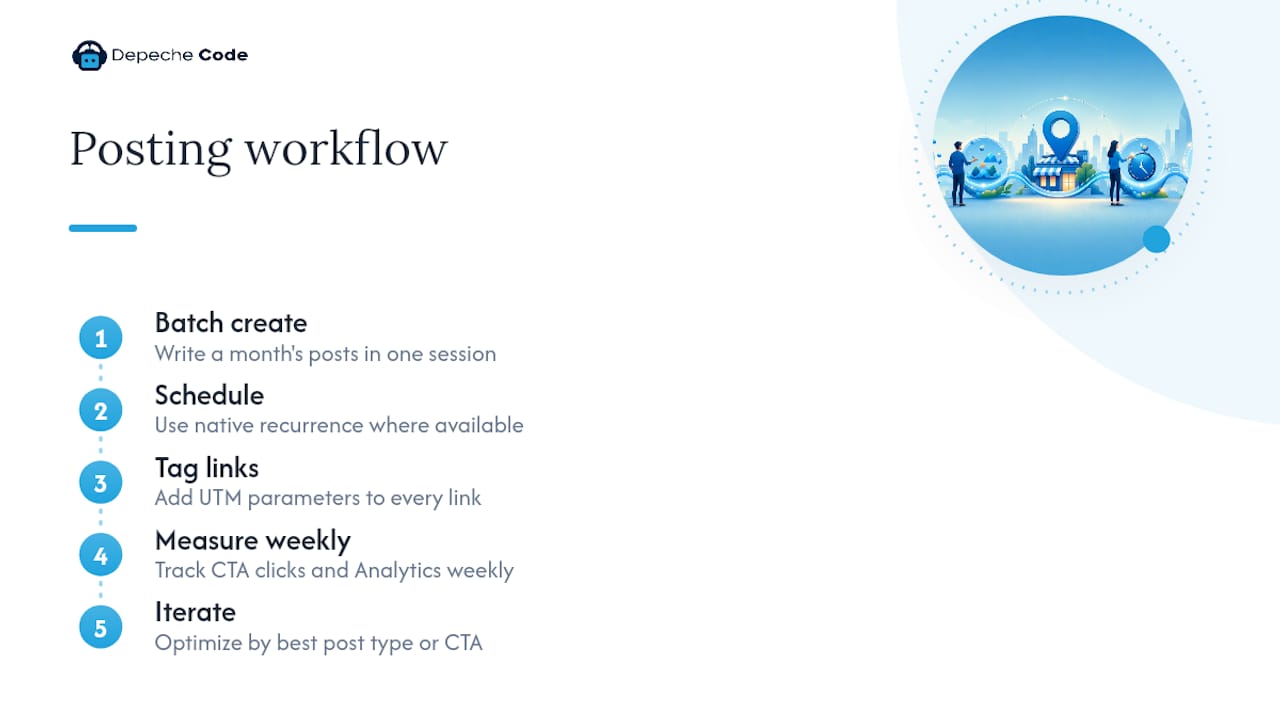
Consistency beats cleverness when it comes to Google Business Profile posts, and that’s the core of the workflow Depeche Code runs for local clients. The sequence is simple: batch create a month of posts in one sitting, schedule them using native recurrence where the format allows it, tag every link with UTM parameters, measure CTA clicks and Analytics traffic weekly, and iterate based on which post type or CTA performed best.
Businesses that stick to this rhythm consistently show a more active profile footprint over time, which lines up with the broader pattern in Google’s own scheduling updates: profiles with fresh, specific content get pulled into AI-generated summaries and local Search features more readily than profiles that sit dormant for months.
The batching step matters more than most business owners expect. Writing five posts in one 30-minute session, with a shared photo library and a rotating set of CTAs, produces sharper copy than writing one post under deadline pressure every Monday morning. Pairing that batch with a broader local SEO workflow ties posting into citations, reviews, and on-page work instead of treating it as an isolated task nobody owns.
The Overlooked Trap in Most Google Business Profile Advice
Most guidance on this topic treats posting frequency as the whole game. Post weekly, check a box, move on. That advice isn’t wrong, but it’s incomplete, and it’s why so many business profiles have a graveyard of posts from 2023 sitting untouched.
The real lever is specificity, not frequency. A vague weekly post (“We’re open, come visit!”) does almost nothing for engagement or for the AI summaries now pulling from Business Profile data. A post naming an actual product, date, or offer does real work, both for the human reading it and for whatever system is deciding whether to surface your business in a Gemini-generated answer.
The second miss is measurement. Businesses post for months without ever checking which format drove clicks, because Google’s native reporting doesn’t hand you that answer, you have to build it with UTM tags. Skip that step, and you’re guessing.
Prioritize this: write one sharp, specific post a week with a real photo and a tracked link, before you worry about automating five posts a day nobody reads.
— Donovan
Get Help Managing Your Google Business Profile
Hiring an external team can be an alternative to maintaining your Business Profile active instead of paying a full-time salary for someone to write posts, track UTM links, and monitor post rejections.
Managing posts well takes more than remembering to log in on Mondays. It means building a content calendar, matching post types to your goals, tagging every link correctly, and reading the Insights data closely enough to know what’s actually working. Depeche Code’s local SEO services fold Business Profile posting into a broader strategy that includes citations, reviews, and on-page optimization, so your posts support the rest of your visibility instead of standing alone. If your profile also needs a stronger website behind it to convert that post traffic, Depeche Code’s website design and development team can handle that side too.
Ready to stop guessing at your posting schedule? Consider reaching out to a professional service for a look at your current profile and a plan built around your actual business goals.
Where to Find the Official Rules and Deeper Guides
For policy questions, Google’s Create & manage posts help page is the authoritative source on required fields, content rules, and post statuses. Read this first if a post gets rejected and you need Google’s own wording on why.
For developers building automated posting tools, Google’s Business Profile API documentation covers post creation, the RecurrenceInfo object, and the technical requirements for programmatic scheduling.
For tactical, real-world examples and ongoing tracking of display changes, BrightLocal’s Google Business Profile posts guide stays current on visibility shifts that Google doesn’t always document publicly, plus practical UTM tagging advice.
Sources
- Create & manage posts on your Business Profile – Google Business Profile Help
- Create Posts on Google | Google Business Profile APIs | Google for Developers
- A Guide to Google Business Profile Posts – BrightLocal
- Google Business Profile in Gemini now works for multi-location accounts
FAQ
What should I post on my Google Business Profile?
Post specific, timely content: a real offer with dates, an upcoming event, a new product, or a genuine photo update from your business, always with a clear call-to-action button attached.
How do I see my Google Business Profile posts after publishing?
Search your business name on Google or open Maps, and your live posts appear under the “Updates” tab on mobile or the “From the owner” section on desktop; you can also review and edit them directly from your Business Profile dashboard.
How do Google Business Profile posts work?
You create a post through the Business Profile dashboard or app, choosing Update, Offer, or Event, then Google reviews and publishes it to Search and Maps, where it displays in reverse chronological order until it’s replaced by newer posts or, for Offers and Events, until its end date passes.
What are the rules for a Google Business Profile post?
Posts can’t include prohibited content like regulated goods without proper disclosure, misleading claims, or broken links, and every post goes through a review that ends in one of three statuses: Live, Pending, or Not approved, per Google’s own guidelines.