
Update WordPress core, plugins, and themes immediately, confirm your backups actually restore, and lock every admin account behind two-factor authentication. Those three moves stop the overwhelming majority of real-world compromises, according to the official WordPress hardening guide and the 3-2-1 backup principle that governs disaster recovery. Everything else in this guide, including the maintenance cadence Depechecode runs for its own hosting clients, builds on that foundation.
TL;DR:
- Most breaches are preventable through immediate core, plugin, and theme updates, coupled with offsite backups and two-factor authentication for admin accounts.
- Automated updates, especially for minor security patches, should be enabled and regularly verified, with major updates staged and tested in a clone environment.
- Restrict database privileges, move wp-config.php outside the web root, and disable PHP execution in upload folders to minimize attack surfaces.
- Using a web application firewall at the server or CDN level, along with HTTPS, security headers, and strict TLS policies, adds critical layers of defense against external threats.
- Routine maintenance like weekly plugin and core updates, monthly backup restores, security scans, and user audit checks are essential to sustain security and respond swiftly to incidents.
Table of Contents
- Quick WordPress Security Hardening Checklist: Fast Wins In 15 To 60 Minutes
- How Do You Keep WordPress Core, Plugins, and Themes Updated Safely?
- Hosting and Server Hardening: What To Check Beyond WordPress Itself
- Access Control and Authentication: Closing the Login Door
- Protecting wp-config.php and File Permissions the Right Way
- Database Hardening: Least Privilege and Backup Design
- Edge Protections: Firewalls, TLS, and Security Headers
- Detect and Respond: Logging, Monitoring, and Your Incident Playbook
- The Depechecode Maintenance Playbook: A Monthly Cadence Worth Copying
- Where Should You Focus First, and When Should You Hire Help?
- How Depechecode Handles WordPress Maintenance and Hosting
- Sources
- FAQ
Quick WordPress Security Hardening Checklist: Fast Wins In 15 To 60 Minutes
Most site owners treat WordPress security hardening as a someday project. It shouldn’t be. The five tasks below take under an hour combined and close the gaps attackers scan for most often.
- Turn on core auto-updates for security releases and schedule plugin/theme updates weekly. WordPress applies minor security patches automatically by default, but confirm the setting hasn’t been disabled by a hosting configuration, and check plugin update logs at least once a week.
- Verify your backups are offsite and run a test restore. A backup nobody has restored is a guess, not a plan. Pull one file and one full backup down and confirm they open cleanly.
- Force strong, unique passwords and require 2FA for every account with publish or admin rights. A password manager plus an authenticator app closes the door on credential stuffing, still one of the most common attack vectors against WordPress logins.
- Force HTTPS across the entire site and put a firewall in front of it. Either an edge WAF/CDN or a host-level firewall works, but the request needs to be inspected before it reaches PHP.
- Block PHP execution inside the uploads folder and disable XML-RPC if you don’t use it. This single server rule shuts down the classic plugin-upload-to-backdoor attack chain that itrpoka’s hardening guide flags as the highest-value fix on the list.
Pro Tip: Set a recurring 20-minute calendar block every Monday morning for update review. Security drifts when it’s treated as a one-time project instead of a habit, and small weekly checks catch problems before they become incidents.
None of these five require a developer. They require ten minutes of attention and the discipline to repeat them. The sections below explain the “why” behind each one and give you the exact configuration values to use.
How Do You Keep WordPress Core, Plugins, and Themes Updated Safely?
Outdated plugins cause most WordPress breaches, not flaws in WordPress core itself. The WPScan hardening guide is blunt about this: unpatched extensions, not the CMS, are where attackers find their easiest entry points.
Not every update carries the same risk, though, and treating them all the same way is a mistake in the other direction. Security and minor releases (the kind numbered like 6.7.1 or 6.7.2) are narrow, tested patches that WordPress applies automatically unless you’ve disabled that behavior. Major version upgrades and big plugin releases are a different animal. They can change database schemas, deprecate functions, or shift how a theme renders a template, and pushing one straight to a live site is how a routine Tuesday becomes an outage.
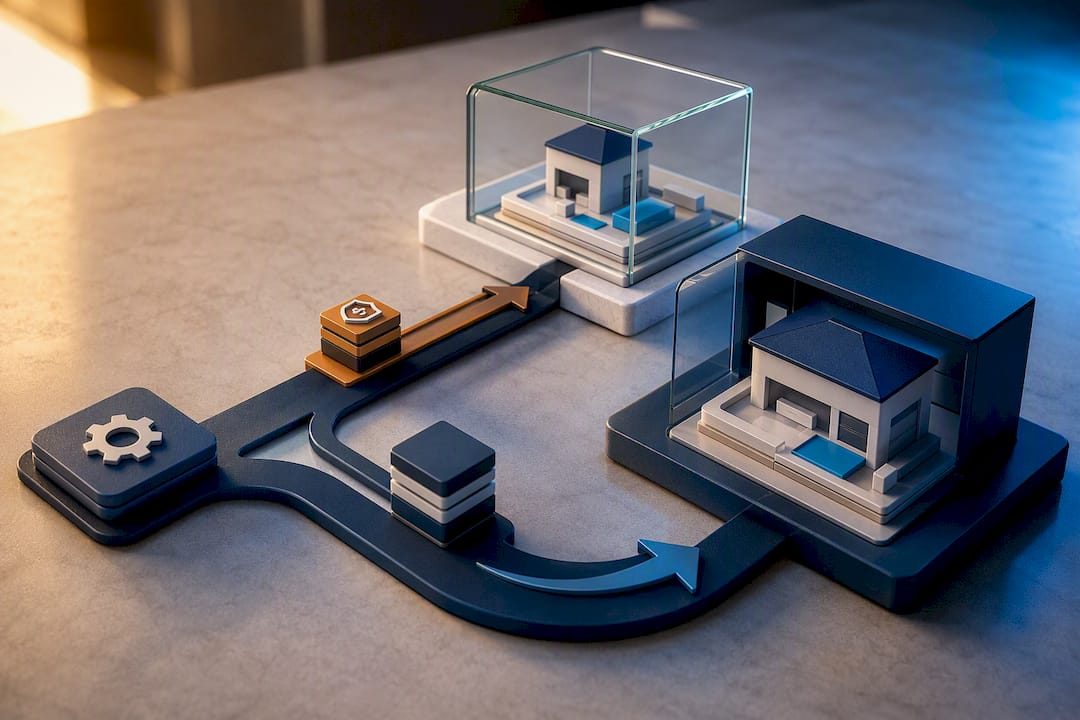
The safer path for anything beyond a minor patch: clone the site to a staging environment, run the update there first, and smoke-test the pages that actually matter to your business — the checkout flow, the contact form, the membership login — before touching production. Most managed hosts include one-click staging. If yours doesn’t, that’s worth weighing when you evaluate hosting.
Plugin and theme vetting deserves its own five-minute ritual before you install anything new:
- Check the “last updated” date in the plugin repository. Anything untouched for over a year is a liability, regardless of how popular it once was.
- Look at the active install count and support forum activity. A plugin with unanswered support threads stretching back months is a plugin whose developer has moved on.
- Confirm the plugin came from the official WordPress.org repository or a paid vendor’s own site, never a bundled “nulled” copy from a third-party download site. Nulled plugins and themes are a well-documented source of pre-installed backdoors.
- Remove anything you’re not actively using. A deactivated plugin still sitting in your files is still a plugin with a filesystem footprint an attacker can scan for.
Hosting and Server Hardening: What To Check Beyond WordPress Itself
Your hosting environment determines how much damage a single vulnerability can do, even one WordPress patches quickly. The host matters as much as the CMS configuration sitting on top of it.
Start with account isolation. Shared hosting environments that don’t isolate each customer’s files mean a compromised neighbor’s site can sometimes reach yours through shared server resources. Look for hosts that run each account in its own container or virtual environment, patch the operating system and PHP version automatically, and keep backups independent of your own.
PHP version matters more than most site owners realize. WordPress publishes recommended minimum PHP versions, and running an outdated branch means missing years of security patches baked into the language runtime itself, not just WordPress’s own code. Check your current PHP version in your hosting dashboard and update it if it’s more than one major version behind the current recommendation.
The rest of the server hardening list is mostly about closing doors you don’t need open:
- Use SFTP or SSH with key-based authentication instead of FTP or password-only access. Plaintext FTP credentials are trivially intercepted on unsecured networks.
- Disable any service or open port you’re not actively using. If you don’t run email off this server, the mail port shouldn’t be listening.
- Configure a server-level firewall (iptables, ufw, or your host’s built-in equivalent) as a baseline, even before adding an application-layer WAF.
- Run ModSecurity or an equivalent web application firewall rule set at the server level, not just inside WordPress.
- Enforce TLS 1.2 or 1.3 exclusively, disable older protocol versions, and add HTTP Strict Transport Security (HSTS) headers so browsers refuse to fall back to plain HTTP.
Pro Tip: Ask your host directly whether they patch the operating system automatically or whether that’s your responsibility. A surprising number of site owners assume “managed hosting” covers OS-level patching when it actually doesn’t, and that gap is exactly where automated scanners look first.
Access Control and Authentication: Closing the Login Door
Every unnecessary administrator account is a login attackers don’t need to guess your password for, they just need to guess theirs. Start here.
- Audit every user account with publish or admin capability. Former employees, one-time contractors, and test accounts accumulate over years. Downgrade or remove anything that isn’t actively needed at that privilege level, following the principle of least privilege: give each account exactly the access its job requires and nothing more.
- Require two-factor authentication for every administrator and editor account. An authenticator app (Google Authenticator, Authy, or a hardware key) adds a second barrier that a leaked or guessed password alone can’t clear.
- Generate and store unique, long passwords in a password manager, not a shared spreadsheet. Reused passwords across sites are how one unrelated data breach turns into your WordPress compromise months later.
- Rate-limit login attempts at the edge or the server. A CDN or WAF rule that throttles repeated failed logins from the same IP stops brute-force attempts before WordPress even processes them.
- Use fail2ban or an equivalent tool to watch server authentication logs. Fail2ban can automatically block IPs that show a pattern of repeated failed login attempts across SSH, SFTP, or the WordPress login form.
The WPScan checklist treats authentication practices and least-privilege access as core, non-optional layers, not extras for larger organizations. A five-person business with one WordPress site needs this exact same discipline as an enterprise, because attackers don’t check your company size before running an automated login scanner against your site.
Protecting wp-config.php and File Permissions the Right Way
wp-config.php holds your database credentials and secret authentication keys. If an attacker reads that file, they own your site, no login required.
The official WordPress hardening documentation recommends moving wp-config.php one directory above your web root when your hosting setup allows it. WordPress automatically checks that parent directory for the file, so nothing in your site breaks, but the file itself becomes unreachable through a normal web request.
Permissions matter just as much as location. The standard, well-documented baseline from WordPress’s own permissions guidance sets directories to 755 and files to 644. wp-config.php itself can often go tighter, to 400 or 440, depending on how your specific server setup reads it, since only the web server process needs to access it, not the broader file system.
A short list of configuration changes closes most of the remaining file-level risk:
- Add
define('DISALLOW_FILE_EDIT', true);to wp-config.php to disable the built-in theme and plugin code editor in wp-admin, a favorite tool for attackers who already have admin access and want to plant a backdoor. - Confirm the web server user, not your personal FTP account, owns the WordPress files where your hosting setup calls for that separation.
- Add server-level rules (in .htaccess for Apache or a location block for nginx) that block PHP execution inside the /wp-content/uploads/ directory. Uploads should hold images and documents, never executable code.
- Keep these server-level rules outside the blocks WordPress itself manages inside .htaccess, so a plugin’s automatic rewrite doesn’t silently strip your custom protections.
Database Hardening: Least Privilege and Backup Design
Your database user account should be able to do exactly what WordPress needs and nothing more. A WordPress database connection genuinely only requires SELECT, INSERT, UPDATE, and DELETE privileges for normal operation. It does not need the ability to drop tables, create new users, or grant permissions to other accounts.
Bind MySQL or MariaDB to localhost, or to a private network interface if your database runs on a separate host, rather than leaving it reachable from the public internet. Server hardening guidance is direct on this point: an exposed database port is an open invitation for automated scanners running credential-stuffing attempts around the clock. For higher-traffic sites, a dedicated database host on a private network adds a meaningful layer of separation between your web-facing server and the data itself.
Backup design follows the same logic as the fast-wins checklist, but deserves more depth here. The 3-2-1 principle, three copies of your data, on two different media types, with one stored offsite, remains the industry standard for a reason: it survives hardware failure, ransomware that encrypts local files, and simple human error simultaneously.
A backup that has never been restored is not a backup. It’s an untested assumption sitting on a hard drive.
Keep at least one immutable, offsite copy your web server itself can’t modify or delete, and put a recurring restore test on your calendar rather than trusting that the backup job “probably worked” because it didn’t throw an error.
Edge Protections: Firewalls, TLS, and Security Headers
Where you place your firewall changes what it can actually stop. A plugin-based firewall runs inside WordPress itself, which means a vulnerability that already achieves code execution can potentially disable it before it does any good. An edge-level WAF or CDN filter inspects the request before it ever reaches PHP, according to itrpoka’s hardening analysis, which makes it the stronger layer whenever your hosting setup or budget allows for it.
A CDN sitting in front of your site typically handles two jobs at once: TLS termination and basic DDoS absorption. Configure TLS with modern cipher suites, disable outdated protocol versions, and add HSTS so browsers remember to request the encrypted version of your site automatically on every future visit.
Security headers add a further layer, but they need testing before you deploy them broadly:
- Content-Security-Policy restricts which domains can load scripts, styles, and embedded content on your pages, cutting off a common cross-site scripting attack path.
- X-Frame-Options stops your site from being loaded inside a hidden iframe on someone else’s page, a technique called clickjacking.
- X-Content-Type-Options: nosniff stops browsers from guessing a file’s content type in a way attackers can exploit.
- Referrer-Policy limits how much URL information leaks to external sites when a visitor clicks an outbound link.
Pro Tip: Roll out a Content-Security-Policy header in “report-only” mode first. It logs what would have been blocked without actually blocking it, so you can catch a plugin or embedded widget your policy would otherwise break before it affects real visitors.
Detect and Respond: Logging, Monitoring, and Your Incident Playbook
Hardening reduces risk. It doesn’t eliminate it, which is why detection and a rehearsed response plan matter just as much as the preventive steps above.
Centralize your logs, web server access logs, PHP error logs, and authentication logs, in one place and retain them for at least a few months. Scattered logs across three different systems are functionally useless during an actual incident, when you need to reconstruct a timeline quickly.
File-integrity monitoring tools like AIDE or OSSEC flag unexpected changes to core WordPress files, theme templates, or server configuration, often the first sign of a compromise long before a site visibly breaks. Pair that with a scheduled malware scan, run through a security plugin or your host’s built-in scanner, and set up alerts so you find out within hours, not weeks.
When something does go wrong, work through these steps in order:
- Isolate the site immediately. Take it offline or put it into maintenance mode to stop active exploitation while you investigate.
- Restore from a backup you’ve already verified works, not the most recent one by default, since the most recent backup may already contain the compromise.
- Rotate every secret: database password, WordPress secret keys and salts, and any API keys the site uses. The WordPress secret-key service generates fresh, unique salts in seconds, and regenerating them forces every existing session to log out.
- Audit every plugin and theme for unfamiliar files or code injected during the compromise window.
- Communicate clearly with anyone affected, customers, staff, payment processors, about what happened and what you’ve done to fix it.
The Depechecode Maintenance Playbook: A Monthly Cadence Worth Copying
Security holds up best as a routine, not a one-time project. That’s the core idea behind the maintenance approach Depechecode applies across the WordPress sites it manages, and it’s a rhythm any small team can copy without hiring anyone.
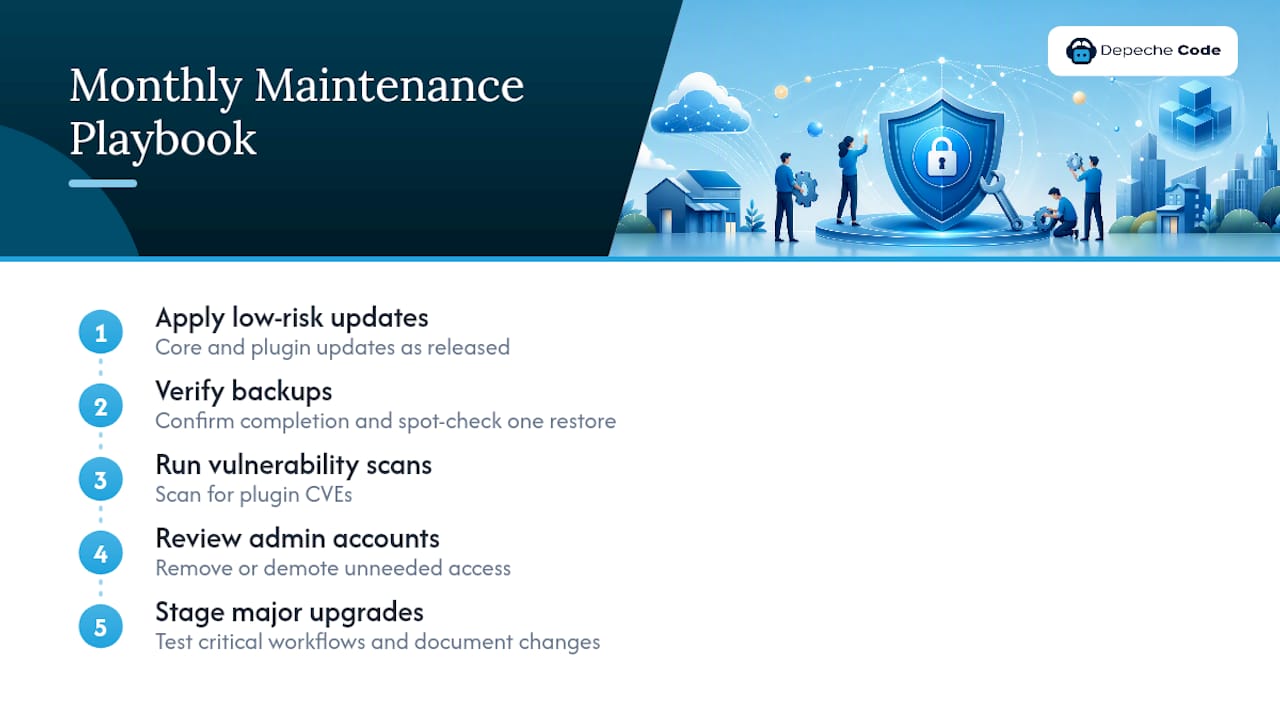
The monthly cycle breaks into four repeatable tasks: apply low-risk core and plugin updates as they’re released, verify that automated backups actually completed and spot-check one restore, run a vulnerability scan against plugin CVEs, and review the admin user list for accounts that shouldn’t still have access. WP Security Ninja’s best-practices guidance frames this exact pattern, weekly light checks paired with a deeper routine pass, as the difference between sites that drift into vulnerability and sites that stay ahead of it.
Major version upgrades, whether that’s a WordPress core jump, a significant theme update, or a plugin’s rewrite, get staged first, tested against the site’s critical workflows, and documented before they reach production. That documentation matters more than it sounds like it should: knowing exactly what changed and when is what turns a mysterious break six weeks later into a five-minute fix.
If you’re evaluating whether to handle this in-house or bring in outside help, a reliable managed maintenance plan should include, at minimum: a defined update schedule with a documented service commitment, actual restore testing rather than just backup confirmation, ongoing security monitoring, and a real human to call when something breaks. Depechecode’s WordPress maintenance plans build around that same structure, and the maintenance tips guide walks through the reasoning behind each piece in more depth.
Where Should You Focus First, and When Should You Hire Help?
Updates, backups, and access control. In that order, those three categories stop more real-world attacks than every other item on this list combined, and I’d rather see a small business nail those three perfectly than spread thin attempting all fourteen at once.
The honest trade-off for most SMBs comes down to time versus risk tolerance. If nobody on your team can commit to a weekly update check and a monthly backup verification, you’re not actually running a security program, you’re running a countdown. That’s the point to bring in managed maintenance or move to hosting that handles OS and PHP patching automatically, because the alternative isn’t “we’ll get to it,” it’s an unplanned afternoon spent restoring a hacked site instead of running your business.
For a small team starting from zero, I’d spread the checklist over 90 days: weeks one and two for updates, backups, and 2FA; weeks three through six for server and file hardening; the remaining stretch for edge protections, logging, and a written incident plan you actually rehearse once. Security built in that order holds up. Security bolted on all at once after a scare usually doesn’t.
— Donovan Wells – Founder and CEO
How Depechecode Handles WordPress Maintenance and Hosting
Running this checklist yourself is entirely doable, but it takes recurring hours most small business owners would rather spend on customers than server logs. Managed WordPress Hosting & Maintenance plans exist for that gap: a managed setup where updates, offsite backups, restore testing, and security monitoring happen on schedule, without you tracking a spreadsheet of tasks.

The WordPress Maintenance plan starts at $99 per month and covers the update and backup cadence outlined above, while WordPress Dedicated Hosting starts at $39 per month for infrastructure built with account isolation and current PHP versions in mind. Before signing with any maintenance provider, ask them directly: do they test restores or just confirm backups completed, what’s their response time when a site goes down, and do major updates get staged before they touch production?
If you’d rather see the full range of what a managed relationship covers, from hosting through broader website design and redesign work, the services overview page breaks down each option. Reach out for a quote and find out what a maintenance plan built around your specific site actually looks like.
Sources
The technical recommendations in this guide draw directly from WordPress’s own Advanced Administration Handbook, the primary reference for file permissions, wp-config placement, and admin-area protections. The .htaccess and permissions documentation covers the exact numeric permission values referenced throughout this article.
For deeper server-side configuration, itrpoka’s 2026 hardening guide and WPScan’s 26-step checklist both offer practical, security-researcher-level detail on plugin vetting and firewall placement. WP Security Ninja’s best-practices guide and Patchstack’s hardening checklist round out the operational and backup guidance covered here. If your security needs extend beyond WordPress itself, Depechecode’s business website security guide covers company-wide protections.
- Hardening WordPress – Advanced Administration Handbook
- Hardening WordPress: 26 Steps to Harden WP Like an Expert
- How to Actually Harden WordPress (2026 Guide) — itrpoka
- WordPress Security Best Practices 2026 – WP Security Ninja
FAQ
Is WordPress Outdated in 2026?
No. WordPress still powers a substantial share of the web and receives regular security updates, but a site only stays current if its administrator actually applies core, plugin, and theme updates, the same discipline this guide covers throughout.
Why Are Some Businesses Moving Away From WordPress?
Most defections trace back to poor maintenance rather than a flaw in the platform itself: unpatched plugins, weak hosting, and no backup strategy create the breaches that sour people on WordPress, not WordPress’s underlying architecture.
Does WordPress Have Security Issues?
WordPress core itself patches vulnerabilities quickly, but outdated plugins and themes cause the majority of real-world breaches, according to WPScan’s hardening research, which makes update discipline the single biggest factor in a site’s actual risk level.
How Do You Protect WordPress From Hackers?
Keep core, plugins, and themes updated, enforce 2FA and least-privilege access on every account, verify offsite backups regularly, and block PHP execution in the uploads folder, the combination the official WordPress hardening guide and this checklist both build around.
Is It Worth Hiring a Managed WordPress Maintenance Service?
For a business without dedicated technical staff, yes: a managed plan like Depechecode’s WordPress Maintenance handles the recurring update, backup, and monitoring cadence that most breaches trace back to being skipped.