

Use WordPress Multisite only when your sites share ownership, plugins, themes, and users under one team. If a single person or organization controls every site and wants consistent tooling, Multisite saves real time. If you’re managing client sites with different owners, security needs, or release schedules, run separate installs instead. Updates roll out across the whole network at once, which is efficient until something breaks. Setup steps and network management guidance are below.
TL;DR:
- WordPress Multisite is best suited for networks with shared ownership, plugins, and user management, not for separate client sites or individual site migrations.
- Setting up Multisite requires server rewrite support and wildcard DNS, with a staged backup process to avoid install failures.
- Managing updates and plugins is complex, necessitating strict governance like plugin whitelists and staged testing to prevent network-wide failures.
- Migrating individual sites out of a Multisite network is difficult and often demands manual database and media path adjustments.
- Professional hosting and support can simplify setup, maintenance, and troubleshooting for large or complex Multisite networks.
Table of Contents
- What Is WordPress Multisite and How Does It Differ From a Single Install?
- When Should You Use WordPress Multisite?
- What Are the Pros and Cons of Multisite?
- What Server Requirements Do You Need Before Enabling Multisite?
- How Do You Enable and Set Up WordPress Multisite?
- How Do You Manage a WordPress Network Day to Day?
- What Goes Wrong With Multisite and How Do You Fix It?
- Depeche Code’s Playbook for Running a Healthy Network
- Why Most Multisite Advice Skips the Governance Problem
- Get Managed WordPress Multisite Hosting and Support
- Sources
- FAQ
What Is WordPress Multisite and How Does It Differ From a Single Install?
WordPress Multisite turns one WordPress installation into a network of sites that share the same core files, plugin folder, and theme library. Each subsite gets its own set of database tables and its own uploads folder, but the underlying codebase is identical across the network.
That shared foundation is the whole point, and the whole risk. A single WordPress site gives one admin full control over everything. Multisite splits that control into two tiers: the Super Admin, who manages the entire network, and individual site admins, who can only touch their own subsite’s content and settings unless the Super Admin grants more.
Plugins and themes get installed once, network wide, but activation happens per site unless the Super Admin forces network activation. Media uploads live in per-site folders under /wp-content/uploads/sites/, which keeps files separated even though everything sits inside one installation, according to WordPress’s own network setup documentation. URL structure also shifts. You’re choosing between subdomains (site2.example.com) or subdirectories (example.com/site2), and that choice affects DNS, cookies, and how search engines treat each site.
When Should You Use WordPress Multisite?
Multisite makes sense when the sites in question are basically siblings, not strangers. Think franchise locations, university department pages, or a company running the same brand across five regional markets. BlogVault’s comparison of Multisite versus single-site installs notes that single installs are usually the better call for a small number of total sites, since the overhead of network administration outweighs the benefit at that scale.
Run through these questions before you commit to a network:
- Ownership: Is there one owner or a tightly governed organization behind every site, or are you serving multiple independent clients?
- Tooling: Do all the sites need the same plugins and themes, or does each one require something different?
- Operational pattern: Do you need to spin up new sites quickly, share a user base, or enforce consistent branding across the network?
- Compliance and isolation: Does any site need a different security posture, an independent update schedule, or its own hosting environment?
Avoid Multisite when you’re building ecommerce sites for separate clients, when compliance requirements differ site to site, or when you expect to sell or migrate individual sites later. Extracting one site from a network is far more work than migrating a standalone install.
What Are the Pros and Cons of Multisite?
The efficiency gains are real, but so are the risks. Here’s the honest breakdown.
Pros:
- Centralized updates mean you patch WordPress core, plugins, and themes once instead of site by site.
- Licensing costs drop when premium plugins and themes only need one license across the network.
- Branding and design stay consistent because every site pulls from the same theme files.
- New site provisioning takes minutes once the network is set up, rather than a fresh install each time.
Cons:
- Not every plugin is Multisite compatible, and some premium plugins charge per subsite or require special network licensing, according to Kinsta’s comparison of Multisite versus managing separate installations.
- One compromised or broken plugin can affect the entire network, not just one site.
- Migrating a single subsite out of the network involves database table surgery, not a simple export.
- Hosting demands grow as the network scales, since Pantheon’s Multisite architecture guide points out that resource sharing across subsites increases server load faster than an equivalent set of standalone sites would.
Pro Tip: Keep a written plugin whitelist from day one. Every plugin request from a site admin gets checked against that list before installation, network wide. This single habit prevents most of the compatibility headaches that show up six months into running a network.
What Server Requirements Do You Need Before Enabling Multisite?
Multisite depends on server-level rewrite support, and skipping this check is the most common reason installs fail halfway through. Confirm these before touching a single config file:
- Rewrite support is active. Apache needs
mod_rewriteenabled withAllowOverride All(or equivalent) set on your directory block; nginx needs its own rewrite rules configured manually, since nginx doesn’t read.htaccessfiles at all. - Wildcard DNS is ready if you’re going the subdomain route. Every subsite address (site2.example.com, site3.example.com) needs to resolve without you adding a DNS record for each one individually.
- Your WordPress install is backed up, ideally staged rather than live. WordPress’s advanced administration handbook is blunt about this: Multisite will not function without proper rewrite support, and there’s no graceful failure mode if the server isn’t configured correctly first.
Older WordPress installs with an established permalink structure sometimes hit restrictions converting to subdirectory Multisite, so a fresh install or staging environment is the safer starting point. Have a rollback plan ready before you touch wp-config.php.
How Do You Enable and Set Up WordPress Multisite?
Once the server checks are done, the actual conversion follows a fixed sequence. Skipping steps or doing them out of order is the fastest way to end up with a broken login screen.
- Back up everything. Full database export, full file backup, and ideally a staging copy you can test against before touching production.
- Deactivate all plugins. WordPress requires a clean plugin slate before network setup will run.
- Edit
wp-config.php. Adddefine('WP_ALLOW_MULTISITE', true);above the line that reads/* That's all, stop editing! */. - Go to Tools > Network Setup. Choose subdomains or subdirectories here. This decision is permanent without a painful migration later, so don’t rush it.
- Run the installer. WordPress generates the exact lines you need to add to
wp-config.phpand.htaccess(or the nginx equivalent). Copy them precisely. - Handle DNS and virtual host settings if you chose subdomains. Your host needs a wildcard A record pointing to your server, and your virtual host or nginx server block needs to accept requests for any subdomain.
- Log back in. You’ll now see a new Network Admin area in your dashboard. If it’s missing, the
wp-config.phpedits didn’t take. - Test permalinks and uploads. Create a test subsite, publish a post, and confirm the URL resolves and the featured image uploads to the correct
/wp-content/uploads/sites/folder.
If any step throws an error, stop and recheck the server prerequisites before moving forward. Most Multisite setup failures trace back to rewrite rules, not WordPress itself.
How Do You Manage a WordPress Network Day to Day?
Running the network is a different job than running a single site, and the biggest mistake new Super Admins make is treating it the same way.
Plugins and themes get installed once from Network Admin, but you choose whether to network activate (forces it on every site) or leave activation up to individual site admins. Licensing terms vary by plugin, so check whether a “per site” license actually covers your whole network before you assume it does.
User management runs through one shared users table across the entire network, which means a single login works everywhere the Super Admin grants access. For larger organizations, role mapping or single sign on cuts down on support tickets from people who forgot which site they’re supposed to access.
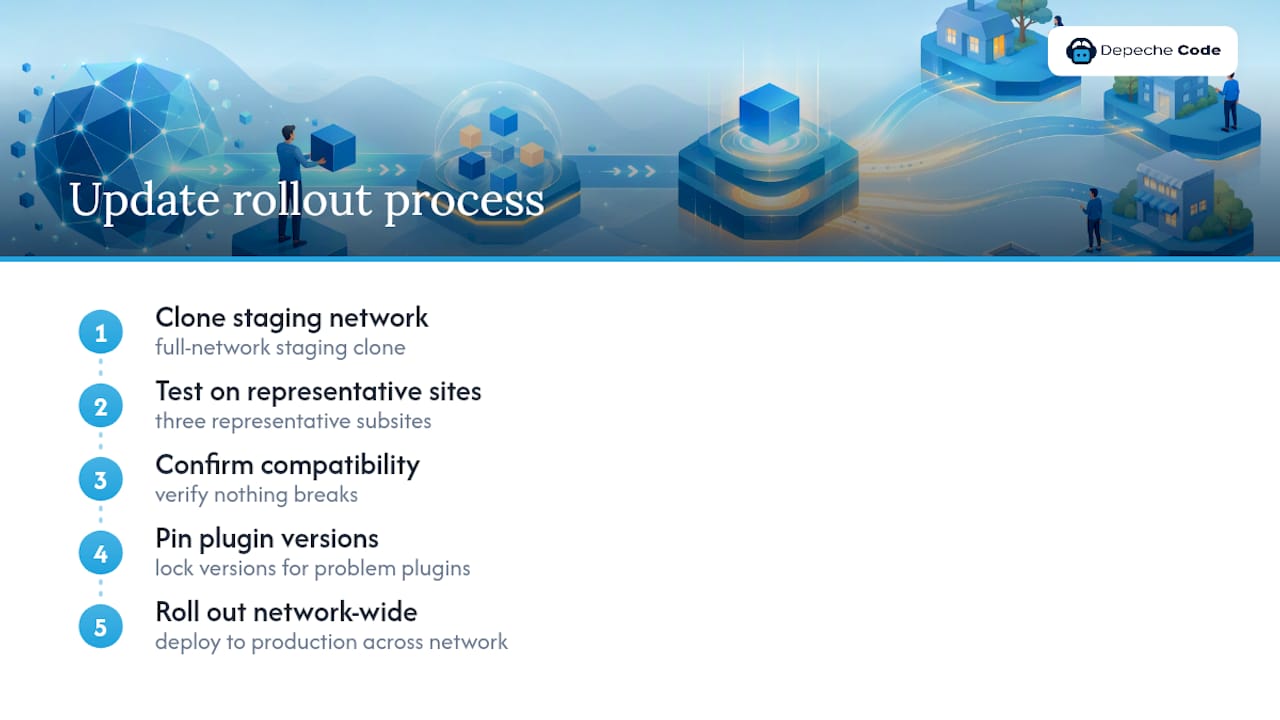
Updates should never go straight to production. Push them to staging first, confirm nothing breaks across a sample of subsites, then roll out network wide. Pin version numbers on plugins with a history of compatibility issues rather than letting them auto-update.
Backups need to cover the whole network, but restoring one subsite from a full network backup is not simple. BlogVault’s analysis of Multisite operations points out that a network-level restore can affect unrelated sites, so selective recovery tools or manual database work are often necessary.
Pro Tip: Set up a staging clone of your entire network, not just one subsite. Testing an update against three representative sites catches compatibility problems that testing against just one site misses.
What Goes Wrong With Multisite and How Do You Fix It?
Most Multisite problems trace back to one of a handful of usual suspects. Here’s how to work through them in order.
- Permalink 404 errors. Almost always a rewrite rule problem. Recheck your
.htaccessfile against what the network installer originally generated, or re-verify your nginx rewrite block if you’re not on Apache. - Media files not loading. Check the uploads path. Multisite stores subsite media under
/wp-content/uploads/sites/[site-id]/, and a misconfigured CDN or caching layer sometimes points to the wrong folder structure. - Domain mapping issues. If you’re mapping a custom domain to a subsite, verify DNS propagation and confirm the virtual host or server block on your hosting account actually points to the right document root.
- Permission errors in Network Admin. Usually a role assignment problem. Confirm the affected user actually holds Super Admin status, not just site-level admin.
Migrating a subsite out of the network entirely is the hardest of these to solve with a quick fix. It requires exporting that site’s specific database tables, remapping table prefixes, and handling media paths correctly. Tools exist to automate parts of this, but a network with dozens of sites or complex custom fields often calls for professional migration help rather than a DIY export.
Depeche Code’s Playbook for Running a Healthy Network
Governance is what separates a Multisite network that runs smoothly for years from one that turns into an unmanageable mess by year two. The recurring theme across every Multisite operational guide is the same: define the rules before you need them, not after something breaks.
- Maintain a written plugin whitelist and require Super Admin approval before anything new gets installed.
- Log every Super Admin action so you can trace what changed and when if a site breaks unexpectedly.
- Run a staged update checklist: staging first, spot check across representative subsites, then network-wide rollout.
- Move to dedicated or managed WordPress hosting once your network passes a handful of active subsites, since shared hosting resources get strained fast.
Why Most Multisite Advice Skips the Governance Problem
The technical side of Multisite gets plenty of attention: the wp-config edits, the DNS records, the rewrite rules. What gets skipped is the part that actually determines whether a network survives past its first year, which is governance.
Most guides treat Multisite as a purely technical decision. It isn’t. The real failure point isn’t a misconfigured .htaccess file, it’s a Super Admin who never wrote down which plugins are allowed, so six months in, three subsites are running conflicting versions of the same plugin and nobody remembers why. I’d argue the plugin whitelist matters more than the initial server setup, because bad server config throws an obvious error. Bad governance fails silently, for months, until a site goes down during a routine update.

The other overrated piece of advice is “just back up before updating.” True, but useless without a staging environment that actually mirrors production. A backup tells you what broke. Staging prevents the break from happening on a live site in the first place.
If you take one thing from this article, prioritize the governance template before you touch wp-config.php. The technical setup is a Tuesday afternoon. The governance decisions are what you’ll be living with for years.
— Donovan Wells – Founder and CEO
Get Managed WordPress Multisite Hosting and Support
Professional services are the alternative to piecing together server configuration, plugin governance, and update schedules on your own. Running a Multisite network well means dedicated resources, staged testing, and someone watching the network when a plugin update goes sideways at 2 a.m., and that’s exactly where our WordPress Dedicated Hosting and Maintenance plans come in.

A dedicated team typically handles the server side: mod_rewrite configuration, wildcard DNS setup for subdomain networks, staged update rollouts, and network backups that account for how hard it is to restore a single subsite from a full network dump. If you’re already running a network and considering a migration, or you’re weighing whether to convert an existing site into a multisite setup, that’s exactly the kind of complex, high-stakes call worth getting a second opinion on before you touch production. Reach out through our full services page to talk through your network’s specific setup, and we’ll tell you honestly whether Multisite is the right call for your situation or whether separate installs would serve you better.
Sources
- WordPress Multisite Vs Single Site: Which One Should You Choose? – BlogVault
- Create A Network – Advanced Administration Handbook
- WordPress Multisite Explained From Architecture to Implementation | Pantheon
FAQ
Is WordPress Outdated in 2026?
No. WordPress still powers a large share of the web, and Multisite remains a core, actively maintained feature rather than a legacy holdover. The platform continues to receive regular security and core updates, and Multisite’s network admin tools have kept pace with those releases.
How Do I Activate Multisite in WordPress?
Add define('WP_ALLOW_MULTISITE', true); to your wp-config.php file above the “stop editing” line, then go to Tools > Network Setup in your dashboard. From there, WordPress generates the exact code you need to finish enabling the network, as detailed in WordPress’s network setup guide.
How Do I Create a Multisite WordPress Site?
Back up your site, deactivate all plugins, then follow the Network Setup wizard under Tools in your WordPress dashboard. Choose subdomains or subdirectories, run the installer, and copy the generated code into wp-config.php and .htaccess exactly as provided.
Should I Enable Multisite (WPMU)?
Only if your sites share ownership, plugins, users, and an update schedule, such as franchise locations or regional versions of one brand. If you’re managing independent client sites with different security or compliance needs, separate installs are the safer, more flexible choice.
Can Depechecode Set Up and Host a Multisite Network?
Yes. Depechecode offers WordPress Dedicated Hosting and Maintenance plans built for networks that need staged updates, backup handling, and server configuration support. Pricing and plan details are available on the hosting and maintenance services page.