

If your pages feel sluggish, images are almost always the reason, and the fastest fix is converting your hero image to a modern format, sizing it correctly, and telling the browser to fetch it first. Images typically make up roughly 40 to 41% of the data a page transmits, which means they dominate Largest Contentful Paint, the Core Web Vitals metric that measures how fast your main content appears.
TL;DR:
- Converting hero images to WebP or AVIF and resizing them to the container can reduce file size by 25% to 34%, significantly improving load times.
- Pairing preload hints with a fetchpriority=“high” attribute ensures the browser requests the hero image early, boosting Largest Contentful Paint.
- Using responsive image markup with srcset, sizes, and explicit width and height attributes prevents layout shift and allows the browser to select the optimal image size for each device.
- Lazy-loading images below the fold while keeping the hero image eager-loaded optimizes overall page speed and user experience.
- Regularly reviewing and resizing images during content updates prevents performance degradation over time and maintains fast loading speeds.
Table of Contents
- Why images slow a page down: discovery, download, and render delays
- The fixes that matter most, ranked by impact
- How to implement these fixes in your markup and CDN
- How to test and verify the improvements actually worked
- What we see across client sites
- Our take: stop treating image optimization as a one-time cleanup
- FAQ
- Sources
Why images slow a page down: discovery, download, and render delays
Three separate problems cause slow image loading, and each needs a different fix. Mixing them up is why so many “image optimization” attempts fail to move the needle on Largest Contentful Paint.
The first is discovery delay. The browser can only request a file once it knows that file exists, and if your hero image is buried in a JavaScript-rendered component or waiting behind a chain of other requests, the browser does not even start downloading it until late in the page load. The second is download time. An oversized, inefficiently encoded file takes longer to transfer regardless of connection speed, and a bloated JPEG served at desktop width to a phone screen wastes bandwidth the user never asked to spend. The third is render delay: once the bytes arrive, the browser still has to decode the image, and large, complex files force the CPU to work harder before anything appears on screen, which can stall rendering even after the download finishes.
A handful of mistakes show up again and again on real sites:
- Lazy-loading the image that is actually the LCP element, which delays its discovery instead of speeding anything up
- Omitting width and height attributes, which lets the image shift layout as it loads and hurts Cumulative Layout Shift
- Serving the same full-resolution file to every device, including phones that will display it at a fraction of the size
- Letting a theme or plugin insert the hero image through JavaScript, which hides it from the browser’s early scan of the page
Each of these maps to a distinct fix, which is why the checklist below is ordered by where the time is actually going.
The fixes that matter most, ranked by impact
Not every image fix carries the same weight. Some changes shave milliseconds; others cut seconds off Largest Contentful Paint. Here is the order that tends to produce the biggest gains for the least engineering effort.
- Convert and right-size the hero image. Serve it through a format-aware CDN or convert it to WebP or AVIF, and size it for the container it actually renders in rather than its original upload resolution.
- Add preload and fetchpriority to the LCP image. Pairing
<link rel="preload" as="image">withfetchpriority="high"tells the browser to fetch that file before less important resources, which directly improves Largest Contentful Paint. - Implement responsive images. Use
srcsetandsizesso the browser picks the smallest file that still looks sharp on that device, and set explicit width and height attributes to prevent layout shift. - Lazy-load everything below the fold, and nothing above it. Apply
loading="lazy"to secondary images only; the hero image should never carry that attribute. - Remove unnecessary request chains. Eliminate redirects, consolidate scripts that block image discovery, and avoid rendering the LCP image through client-side JavaScript when a plain
<img>tag would load sooner. - Turn on an image-transforming CDN. Automatic format negotiation and on-the-fly resizing mean you stop shipping one oversized master file to every visitor.
On format choice: WebP is the safer default because browser support is nearly universal and the compression gains over JPEG are well established. AVIF compresses further in many cases, but decoding cost and support are less consistent, so test it on your actual traffic before committing to it as your only format.
Pro Tip: Check your CMS theme settings before touching code. Many slow hero images are full-resolution uploads the theme never resized, not a code problem at all.
How to implement these fixes in your markup and CDN
The responsive image pattern looks like this in practice:
<img src="hero-800.webp"
     srcset="hero-400.webp 400w, hero-800.webp 800w, hero-1200.webp 1200w"
     sizes="(max-width: 600px) 100vw, 800px"
     width="1200" height="675"
     alt="Descriptive text">
The srcset attribute lists candidate files with their widths, sizes tells the browser how much screen space the image occupies at different viewports, and width/height let the browser reserve layout space before the file even arrives, which prevents layout shift.
For the LCP image specifically, pair a preload hint with a priority signal:
<link rel="preload" as="image" href="hero-800.webp" fetchpriority="high">
This moves the fetch earlier in the request timeline instead of waiting for the browser to parse further down the page. Use it sparingly: preloading more than one or two resources per page dilutes the benefit, since the browser is still limited by bandwidth and connection count.
A few more rules worth following:
- Apply
loading="lazy"only to images below the fold; the LCP image should load eagerly and with high priority - Let your CDN generate AVIF and WebP variants on demand with a JPEG fallback, rather than maintaining multiple formats manually
- Cache transformed images at the edge so repeat visitors and subsequent page views reuse the same optimized file
- Target a quality setting that removes bytes without visible artifacts rather than chasing the smallest possible file size
Switching a hero image from JPEG to WebP commonly cuts file size by 25% to 34% at comparable visual quality, which is one of the largest single gains available from a format change alone, according to research on web image formats.
How to test and verify the improvements actually worked
Changing code without measuring the result is guesswork. Start with a network request waterfall in Chrome DevTools, WebPageTest, or DebugBear to confirm which resource is actually your LCP element and whether it is stuck behind a request chain.
From there:
- Record lab metrics with Lighthouse and field data from Chrome User Experience Report or your own real-user monitoring, tracking both LCP and CLS
- Note the payload size of your hero image before and after conversion, not just the overall page weight
- Change one variable at a time (format, preload, lazy-loading rule) and compare median LCP across several test runs rather than a single sample
- Confirm the browser is actually prioritizing the hero request by checking its position and timing in the waterfall
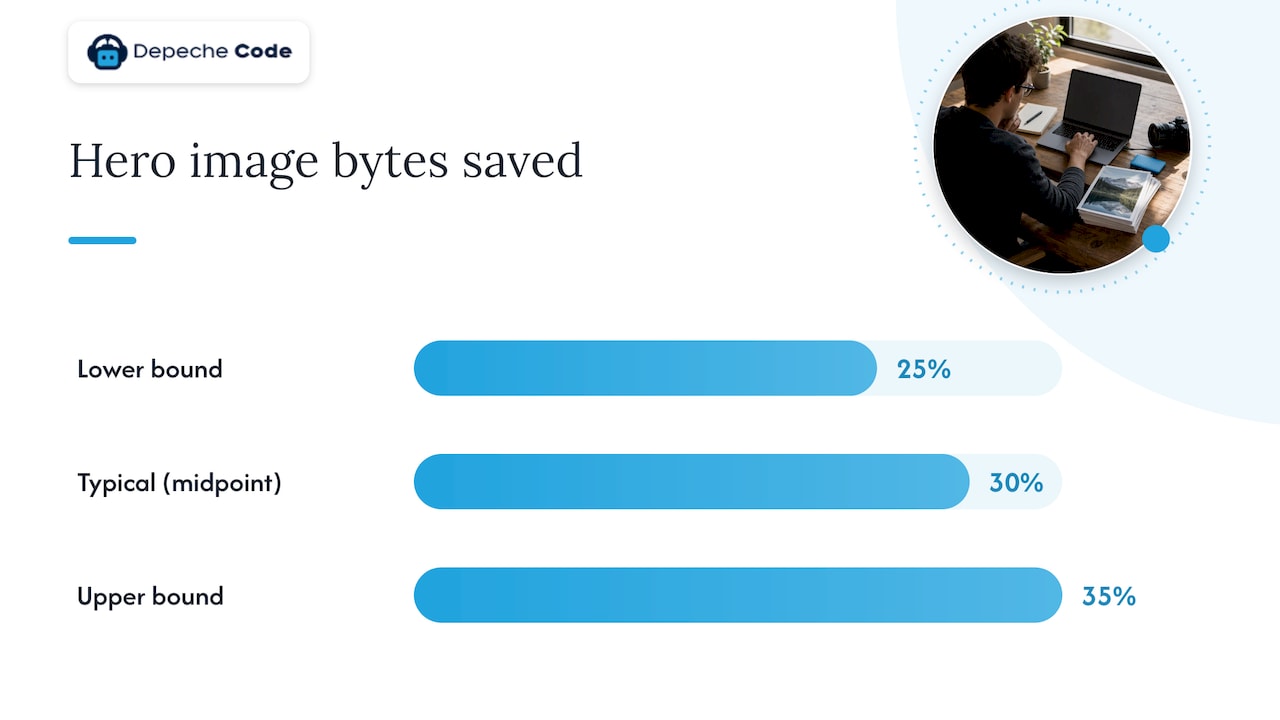
Expect a JPEG-to-WebP or AVIF conversion alone to cut image bytes by roughly 25 to 35%, with a corresponding drop in page load time and LCP once the format and priority fixes are combined. For a deeper walkthrough of the Vitals themselves, our Core Web Vitals guide covers field-data measurement in more detail.
What we see across client sites
Donovan Wells, Founder and CEO of Depeche Code, a full-service digital agency based in Orlando handling website development, redesign, SEO, mobile apps, AI chatbot integration, and social media management, has watched the same two image problems surface repeatedly across client rebuilds. Theme defaults frequently ship a full-resolution hero image sized for a 4K monitor, and caching or lazy-loading plugins often apply their rules indiscriminately, lazy-loading the very image that should load first.
Fixing this on a single page is straightforward. Fixing it across a CMS with dozens of templates, inconsistent upload sizes, and layered plugins is a different problem, and it is usually where teams with limited development time decide outside help is worth the cost.
Our take: stop treating image optimization as a one-time cleanup
The conventional advice, “compress your images,” undersells the problem. A compressed JPEG that still loads behind a request chain or gets lazy-loaded by mistake will not move your LCP score at all. Format and file size matter, but priority and sequencing matter more, and most guides skip straight past them.
If we had to pick one place to start, it would not be compression software. It would be checking whether your current hero image is even being requested early. A beautifully compressed file that the browser does not fetch until halfway through the page load still produces a slow LCP.
The other overlooked piece is maintenance. Image performance degrades quietly as content editors upload new photos without resizing them, and a site that scored well six months ago can drift back into slow territory without a single code change. Treat image delivery as an ongoing check, not a project you finish once.
— Donovan Wells – Founder and CEO
FAQ
Why are my images loading slowly on my website?
The most common causes are oversized files served at full resolution, outdated formats like unoptimized JPEG or PNG, and missing priority signals that tell the browser which image to fetch first. A request chain that delays discovery of the image, or a lazy-loading rule mistakenly applied to your hero image, can add further delay.
How can I improve image loading speed on my website?
Convert your largest images to WebP or AVIF, serve them at the size they actually display rather than their original upload resolution, and add fetchpriority="high" with a preload hint to your LCP image. Pair this with responsive srcset markup so mobile visitors never download a desktop-sized file.
How do I fix images that are not loading on a website?
Check the browser console for broken file paths, incorrect CDN configuration, or a plugin blocking the request, since these are the usual culprits behind images that fail to load entirely. If the file loads but appears blank or broken, confirm the format is supported by the visitor’s browser and that any fallback image is correctly configured.
How can I optimize my images for websites?
Resize images to their actual display dimensions, convert them to WebP or AVIF where supported, and strip unnecessary EXIF metadata that adds file size without affecting what visitors see. Add explicit width and height attributes to prevent layout shift, and lazy-load only the images below the fold.
For sites with recurring image issues across many pages, our website speed optimization roadmap and WordPress performance guide walk through platform-specific fixes, and our services page outlines how we approach these projects for clients who prefer a managed fix.
Sources
- Improve image delivery | Performance insights | Chrome for Developers
- Fix image LCP | MDN Web Docs (blog)