

You can add a chatbot to WordPress in five ways: a plugin, an embedded script from a chatbot platform, a direct connection to a language model such as ChatGPT through its API, a custom-built bot, or a done-for-you integration by an agency. Which one fits depends on how much control you want, who maintains it, and what happens when the bot can’t answer. This guide walks through all five, shows how to choose, and covers the legal and technical details that most plugin roundups skip.
TL;DR
- Plugins are the fastest route and fine for a small site with simple questions. Script embeds and API connections give you more control over answers and data.
- Connecting ChatGPT to a site takes more than pasting an API key: you need a knowledge base, a secure server-side connection, and rules for what the bot may say.
- Always tell visitors they are talking to an AI, and set up a handoff to a human for complex or high-value questions.
- Our published AI chat bot plans start at $49 per month, plus a $299 one-off setup and integration fee.
- Test on a staging copy first, then watch real conversations for the first few weeks.
Table of Contents
- What chatbot integration for WordPress actually involves
- Method 1: A WordPress chatbot plugin
- Method 2: A chatbot platform embedded with a script
- Method 3: Connecting ChatGPT or another language model through an API
- Method 4: A custom-built chatbot
- Method 5: A done-for-you integration
- Which method fits your site?
- Handoff to a human: the feature that separates useful bots from annoying ones
- Compliance: say it is an AI, and don’t oversell it
- Our perspective on WordPress chatbots
- A launch checklist for any method
- What it costs
- Work with us on your WordPress chatbot
- FAQ
- Sources
What chatbot integration for WordPress actually involves
A chatbot on WordPress is three things working together: a widget visitors see, a brain that produces answers, and a source of truth the brain draws from (your pages, FAQs, product catalog, policies). Plugins bundle all three. An API connection to a language model gives you only the brain, so you build the other two.
That split explains why the pages that rank for this topic are mostly plugin comparisons. Plugins are the easy entry point. But the right question is not “which plugin” first. It is “what should the bot do on my site?” Answering routine questions, qualifying leads, helping shoppers find a product and booking appointments are four different jobs, and each needs different data and different handoff rules.
Before choosing a method, write down:
- The ten questions your team answers most often by email or phone.
- What the bot must never answer (pricing exceptions, legal, medical, refunds over a set amount).
- Who gets the conversation when the bot stops.
- What visitor data the bot will see and where it will be stored.
Those four answers narrow the five methods quickly.
Method 1: A WordPress chatbot plugin
The most common route. You install the plugin from the dashboard, add your content as training material, style the widget, and publish.
Best for: brochure sites, small blogs, and businesses that want something live this week.
Strengths:
- Installs in minutes with no code.
- Most can read your posts, pages and, for stores, WooCommerce products.
- Usually priced as a monthly or annual subscription.
Watch out for:
- Plugins that load heavy scripts on every page. Check your speed scores before and after.
- Answers that drift from your actual policies if the knowledge base isn’t refreshed when you change prices or hours.
- Conversation data stored by a third party you haven’t reviewed.
- Plugin updates that conflict with your theme or other plugins.
When comparing plugins by type rather than brand, look for these features: a way to restrict answers to your own content, human handoff to email or live chat, conversation logs you can export, a clear data-retention policy, and a visible “AI assistant” label you can customize.
Method 2: A chatbot platform embedded with a script
Here the bot lives on a separate platform, and you paste a snippet into your site, either in the theme footer or through a header and footer plugin. The platform handles the interface, analytics and model connections.
Best for: teams that want a richer dashboard than a plugin offers, or that plan to run the same bot on WordPress and elsewhere (a web app, a help center).
Strengths: the bot is independent of your WordPress install, so a theme change or plugin conflict is less likely to break it. Reporting is usually stronger.
Watch out for: a third-party script is still a third-party script. It affects page load, and it sends visitor data off your server. Review the vendor’s privacy terms and put the script on only the pages where the bot helps.
Method 3: Connecting ChatGPT or another language model through an API
This answers the question many readers type: how do I put ChatGPT on my website? You can’t embed the consumer ChatGPT app. You connect your site to a language model through the provider’s API, and a small piece of code or a connector plugin sends visitor questions to the model and returns answers.
The steps look like this:
- Create an API account with the model provider and set a monthly spending cap.
- Store the key on the server, never in front-end JavaScript where anyone can read it. In WordPress, that means a server-side function or a secure configuration file, not a theme setting printed into the page.
- Write a system prompt that sets the bot’s role, tone, limits and the instruction to say “I don’t know” instead of guessing.
- Connect your content. A bare model knows nothing about your business. You need retrieval: your pages and documents are indexed, and the most relevant passages are sent to the model with each question.
- Add a handoff. When confidence is low or the visitor asks for a person, route the chat to your team.
- Log and review conversations so you can find wrong answers.
Best for: businesses with developer support that want control over the model, the prompt and the data flow.
Watch out for: usage-based costs that climb with traffic, a model that confidently invents details when your content has gaps, and visitors typing sensitive information into a box that sends it to an outside provider. Your privacy notice has to say so.
Method 4: A custom-built chatbot
A custom bot goes beyond Q&A. It might check order status in your store, look up appointment slots, update a CRM record, or pull from a private catalog. On WordPress, that usually means a custom plugin or a small service that talks to WordPress through its REST API and to your other systems.
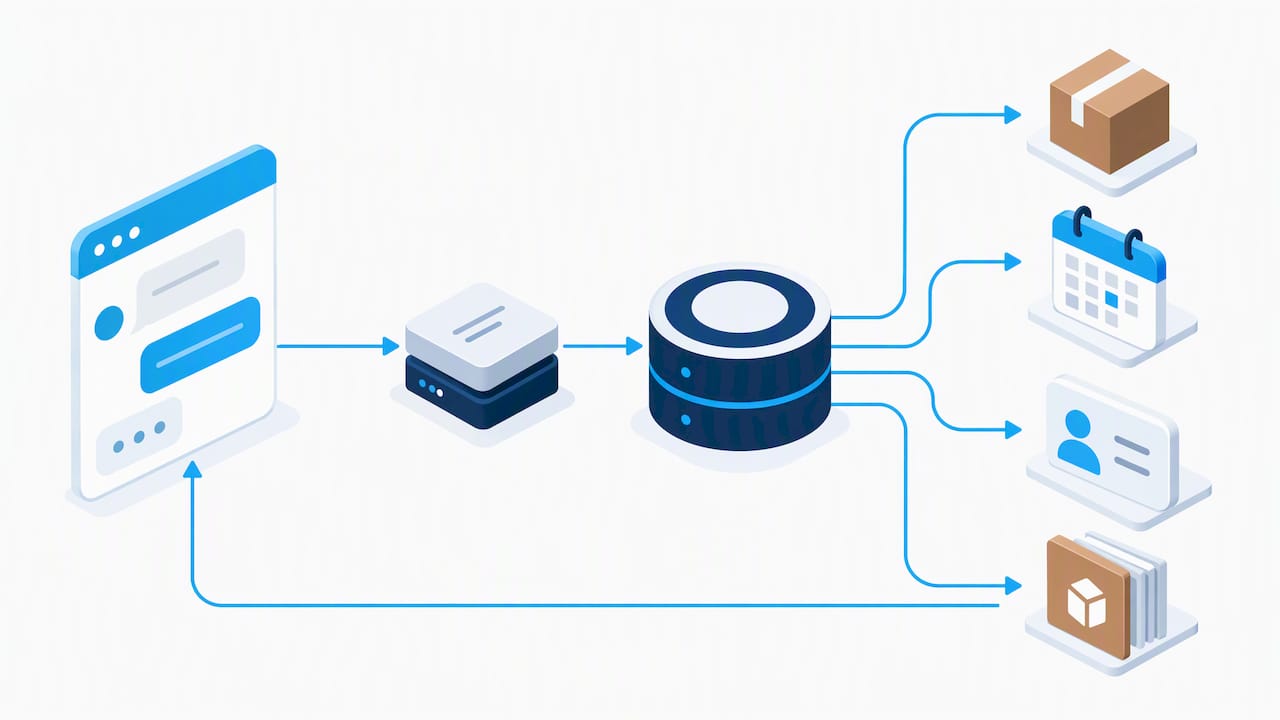
Best for: stores, membership sites and service businesses where the bot must take actions, not just answer.
Watch out for: scope creep and maintenance. A custom bot is software. It needs testing, monitoring and updates whenever WordPress, your plugins or the model provider change something.
Method 5: A done-for-you integration
If you’d rather run your business than debug a widget, you can hand the work to a team that builds, connects, tests and maintains the bot. That is the route we take with clients: we set up the bot, connect it to your site content, and keep it running. We cover the specifics in the Promo section below.
Best for: owners and marketing managers without in-house developers, and businesses where a wrong answer costs real money.
Which method fits your site?
| Your situation | Likely best fit |
|---|---|
| Small site, simple FAQs, want it live fast | Plugin |
| Need analytics, same bot across several channels | Embedded platform |
| Developer on hand, want control over model and data | API connection |
| Bot must check orders, book slots or update a CRM | Custom build |
| No time or technical staff, accuracy matters | Done-for-you integration |
A practical rule: start with the simplest method that handles your top ten questions and your handoff. Move up only when you hit a real limit, such as answers you can’t control or data you can’t export.
Handoff to a human: the feature that separates useful bots from annoying ones
Practitioners advise treating AI chatbots and live chat as different tools. Chatbots handle round-the-clock routine questions well, but a sound setup routes complex, high-value inquiries to a person when the AI reaches its limits.
In practice, decide on triggers before launch:
- The visitor asks for a person, a quote, a refund, or a cancellation.
- The bot gives the same fallback answer twice in a row.
- The message contains words tied to complaints or urgent problems.
- The visitor is on a high-value page, such as a pricing or checkout page, and shows buying intent.
The technical side of a handoff is an event moving from the chat widget to your team’s inbox, CRM or messaging tool. Developers often solve that with webhooks and a queue so no message is lost during traffic spikes. If you’re building that part yourself, this explanation of routing events with webhooks and queues shows the ingest, queue and fan-out pattern in detail.
For the business side of capturing those conversations as leads, see our guide to using AI chat bots for lead generation.
Compliance: say it is an AI, and don’t oversell it
This is the part most plugin roundups leave out. The Federal Trade Commission has made clear that claims about what AI can do must be accurate. In its DoNotPay matter, the agency targeted deceptive claims that an AI service could perform professional duties as a human professional would. The lesson for a business site is straightforward: don’t market a bot as equal to your staff, and don’t imply it never makes mistakes.
A safe baseline for any WordPress chatbot:
- Label it. The widget’s greeting should say it is an AI assistant, not a person. Don’t give it a human name and photo that suggest otherwise.
- State its limits. A short line such as “AI answers can be wrong. For pricing, contracts or anything important, we’ll connect you with our team” sets expectations.
- Avoid performance promises you can’t back up, such as “instant, perfect answers” or “replaces your support team.”
- Keep a privacy notice current. It should say that chat content is processed by the chatbot and any outside AI provider. Our walkthrough of chatbot privacy policy clauses and vendor checks lists what to include.
- Be careful with regulated topics. If your business gives legal, medical, financial or tax guidance, have your attorney or compliance adviser review what the bot may say, and consider blocking those topics entirely.
This is general information, not legal advice. State laws on chatbot disclosure and data privacy differ, so ask a business attorney licensed in your state to review your setup before launch.
Our perspective on WordPress chatbots
We build WordPress sites and AI chat bots, and most of the problems we see aren’t about which tool was picked. They come from a bot launched with no content behind it, no owner, and no plan for what happens when it fails.
Our view is simple. A chatbot is part of your website, so it should be designed, hosted and maintained like the rest of it. That means checking its effect on page speed and your SEO scores, keeping its knowledge in step with your pages, and giving every deliverable, from the configuration to the content, to the business that paid for it. We also think small businesses are better served by a bot that does three things well than one that tries to do thirty.
We use directed AI inside our own workflow to ship faster, and we apply the same discipline to client bots: humans decide what the bot may say, and humans review what it actually said. If a bot can’t be explained to your customers in one sentence, it isn’t ready.
— Donovan Wells – Founder and CEO
A launch checklist for any method
- Clone your site to staging and install or connect the bot there first.
- Load only approved content: current pricing, hours, policies, product details. Remove outdated pages.
- Write the disclosure and the limits into the first message.
- Test 50 real questions, drawn from your inbox and phone log, including trick questions and off-topic ones.
- Test the handoff at different hours so you know who receives what, and when.
- Check performance: run your page speed test before and after, on mobile.
- Update your privacy notice and, where needed, cookie settings.
- Go live on a few pages first, then widen.
- Review transcripts weekly for the first month, then monthly. Fix content gaps rather than patching prompts.
If your bot touches SEO, such as answering questions that deserve their own page, our piece on optimizing a WordPress site for SEO with AI chat bot integration explains how to keep the two working together.
What it costs
Expect three cost layers whatever the method: the tool or build, the AI usage, and the upkeep. Plugins and platforms bill monthly or yearly. API connections bill by usage, so cap spending from day one. Custom builds carry the highest upfront cost and an ongoing maintenance bill.
For our done-for-you option, the published pricing is simple. AI chat bot plans start at $49 per month (Starter), $99 per month (Growth) and $149 per month (Prime), with a one-off $299 setup and integration fee. If your site also needs a reliable home and regular updates, our WordPress dedicated hosting starts at $39 per month and WordPress maintenance at $99 per month. Plan details are on our AI chat bots service page.
Work with us on your WordPress chatbot
If you want the bot set up, connected to your content and maintained by a team that already builds WordPress sites, that is what we do. We handle the integration, the handoff setup and the ongoing support, and you keep ownership of what we deliver. See our plans and what each includes on the AI chat bots page, or look at WordPress hosting and maintenance if the site underneath needs attention first. For a deeper technical read before you decide, start with our complete guide to implementing AI chat bots on WordPress.
FAQ
How do I add a chatbot to WordPress without coding?
Install a chatbot plugin from the WordPress dashboard, connect it to your content, set a greeting that says it is an AI assistant, and publish. Test on a staging copy first. If you want it connected to your CRM or want someone else to maintain it, a done-for-you integration saves the work.
Can I add ChatGPT to my WordPress site?
Yes, but through the model provider’s API, not by embedding the consumer app. Either use a connector plugin or have a developer write a server-side connection, keep the API key off the front end, and feed the bot your own content so it answers about your business. Set a spending cap and a handoff to a human.
Will a chatbot slow down my website?
It can. Chat widgets load scripts, and some load them on every page. Measure your mobile speed scores before and after, load the bot only where it helps, and remove it if your scores drop and the bot isn’t earning its place.
Do I have to tell visitors they are talking to an AI?
You should. The FTC has stressed that businesses must be accurate about what their AI tools are and can do, so label the bot clearly and avoid implying a human is typing. Ask a business attorney in your state about any specific disclosure rules that apply to you.
Is a free chatbot plugin enough?
For a small site with a handful of routine questions, it can be. Limits tend to show up in answer control, data export, handoff options and support. If the bot influences sales or customer service, those limits matter.
Sources
- FTC, DoNotPay final consent letters to commenters
- WPBeginner, best WordPress chat plugins
- Webhooks vs WebSockets: ingest, queue, fan out pattern