

To measure ad-driven ROI reliably, mark the right GA4 events as key events, create matching Google Ads conversions from those events, and validate everything with DebugView and Tag Assistant before you let bidding algorithms touch the data. A conversion in GA4 is created from a Google Analytics event and gives you a consistent measurement of important actions across both Google Analytics and Google Ads. Get that foundation wrong and your Smart Bidding is optimizing toward noise.
Here is what to do right now:
- Link your Google Analytics 4 property to your Google Ads account
- Confirm your Google tag (gtag.js) or Google Tag Manager (GTM) container is firing on every relevant page
- Verify the event exists in GA4’s Events list under Admin
- Toggle “Mark as key event” on the event you want to track
- Create a Google Ads conversion from that key event inside GA4 or Google Ads
- Validate with DebugView and check Realtime reports within 24 hours
The order matters. Google Ads bidding uses conversion data to adjust bids in real time, and cross-channel attribution reports only work correctly when the account link and tag are confirmed before you mark anything.
Key Takeaways
Accurate GA4 conversion tracking requires linking accounts, confirming tags, marking the right key events, creating Google Ads conversions from those events, and validating everything with DebugView before bidding goes live.
| Point | Details |
|---|---|
| Mark events before you need data | Key event configuration is not retroactive; mark events before expecting historical data to update. |
| Align settings across platforms | Match attribution model, time zone, counting method, and conversion window in both GA4 and Google Ads. |
| Validate with DebugView first | Confirm event name and parameters in DebugView before marking any event as a key event. |
| Watch the primary/secondary status | Imported GA4 conversions may default to secondary in Google Ads and will not influence Smart Bidding until set to primary. |
| Depechecode for complex setups | Depechecode provides audit, implementation, and monthly monitoring for teams that need reliable conversion data for bidding. |
Table of Contents
- What do you need before setting up GA4 conversion tracking?
- Key events vs. conversions in GA4: what is the actual difference?
- How to mark a GA4 event as a key event (step by step)
- How to create a Google Ads conversion from a GA4 key event
- Which conversion settings actually affect your results?
- How do you test and validate conversions before trusting them for bidding?
- Why do GA4 and Google Ads conversion numbers diverge?
- Best practices to keep your conversion data accurate over time
- Where do you find conversion reports in GA4?
- Depechecode’s agency implementation checklist
- When should you DIY vs. hire an agency for GA4 setup?
- Depechecode handles GA4 implementation so you can focus on results
- Sources
- FAQ
What do you need before setting up GA4 conversion tracking?
Getting the prerequisites right saves hours of debugging later. Here is what needs to be in place.
- GA4 property with Editor access. Viewer access is not enough to mark key events or change attribution settings. Confirm your role under Admin > Property access management.
- Linked Google Ads account. Go to Admin > Google Ads links in GA4. The link must be active, not pending. Both accounts need the correct admin permissions on the Google Ads side too.
- A working tag implementation. You have two options: gtag.js (the Google tag, embedded directly in your site’s
<head>) or Google Tag Manager. GTM is the better choice for most marketing teams because it lets non-developers publish tag changes without touching code. gtag.js is simpler for small sites with a single tag. - Testing tools installed. You need access to GA4 DebugView (Admin > DebugView), the Tag Assistant browser extension, and GTM’s built-in Preview mode. Test in an incognito window to avoid first-party cookie interference from your own browsing sessions.
- Key event quota awareness. Standard GA4 properties allow up to 30 marked key events; GA4 360 raises that to 50. Plan your event taxonomy before you start marking, or you will hit the ceiling on a complex site and have to deprioritize.
Pro Tip: Before any implementation meeting, export your current Events list from GA4 and count how many are already marked as key events. Teams that inherit legacy setups often discover they are already at 25 or 28 and have little room left for new conversion signals.
Key events vs. conversions in GA4: what is the actual difference?
The terminology changed in 2023 and still trips people up. Here is the clean version.
A key event is an event you flag inside Google Analytics 4 as important to your business. It shows up in GA4 reports and can feed predictive audiences. A conversion is the action used for ad bidding and cross-channel reporting in Google Ads. Google is aligning these definitions across Google Ads and Analytics so that a single conversion count drives both platforms, reducing the historical discrepancies that plagued Universal Analytics.
The practical implication: marking an event as a key event in GA4 is the first step. Creating a Google Ads conversion from that key event is the second. You need both for ad bidding to work.
| Term | Where it lives | Used for | Editable in |
|---|---|---|---|
| Key event | GA4 | Analytics reports, audiences, predictive signals | GA4 Admin |
| Conversion | Google Ads (imported from GA4) | Smart Bidding, Ads reporting | Google Ads (some settings) |
Which events should you mark? High-intent completions: form submissions, purchases, phone call clicks, account signups, quote requests. Avoid weak proxy events like scroll depth or time-on-page unless you have a specific behavioral modeling reason. Scroll events add noise to bidding without adding signal quality.
A few events are auto-marked by GA4. The purchase event is one of them. You do not need to manually toggle it, but you should confirm the parameters (transaction_id, value, currency) are passing correctly before you trust the data.
Smart Goals from Universal Analytics are not supported in GA4. If you relied on them, predictive audiences based on purchase probability are the recommended replacement. You can convert a predictive audience into a key event and use it for bidding.
How to mark a GA4 event as a key event (step by step)
Before you start, confirm the event is actually firing. Open GA4 > Reports > Engagement > Events and look for the event name in the last 30 days. If it is not there, the tag is not firing or the event has not been triggered yet.
- Go to Admin (gear icon, bottom left).
- Under the Property column, click Events.
- Find the event you want to mark. Use the search bar if the list is long.
- Toggle Mark as key event to on. The toggle turns blue.
- If the event does not exist yet (for example, you need a conditional event based on a parameter value), click Create event, define the conditions, save it, then return to the Events list and mark the new event.
For custom events, name them with underscores and lowercase letters (lead_form_submit, not “Lead Form Submit”). GA4 is case-sensitive, and a mismatch between what your tag sends and what you mark will result in zero conversions recorded.
When you need parameter-based conditions (for example, only count a page_view event when page_location contains /thank-you), use the Create event flow to build a derived event with that filter, then mark the derived event. Do not mark the parent page_view event or you will count every page view as a conversion.
Pro Tip: Open DebugView (Admin > DebugView) on a second screen, then trigger the action on your site. Watch the event stream in real time. Confirm the exact event_name string and the parameter values before you mark anything. One typo in the event name means zero data.
For a detailed walkthrough with UI screenshots for Shopify and WooCommerce flows, Analytics Mania’s key events guide is the most thorough practical reference available.
How to create a Google Ads conversion from a GA4 key event
First, verify the account link is active. In GA4, go to Admin > Google Ads links. The status should show “Linked,” not “Pending” or “Unlinked.” If it is not linked, click “Link” and follow the prompts. Both accounts need admin access.
Once the link is confirmed:
- In GA4, go to Admin > Events.
- Find the key event you marked. Click the three-dot menu next to it.
- Select Create conversion in Google Ads. This opens the conversion creation flow.
- Review the pre-populated settings (conversion name, category, value, counting method).
- Click Save and continue. The conversion will appear in Google Ads under Tools > Conversions within a few hours.
Alternatively, you can do this from inside Google Ads: go to Tools > Conversions > New conversion action > Import > Google Analytics 4 properties, then select the key event.
Watch for this: When you import a GA4 key event into Google Ads, the platform may automatically classify it as a secondary conversion if your account already has existing primary conversion actions. Secondary conversions are reported but do not influence Smart Bidding. Check Tools > Conversions in Google Ads after import and manually set the new conversion to “Primary” if it should drive bidding. Missing this step is one of the most common reasons a new conversion action appears in reports but has no effect on bids.
Some settings, including counting method and conversion window, are managed in Google Ads after import and are not editable inside GA4. Plan to review those settings in Google Ads immediately after the import.
Which conversion settings actually affect your results?
Most marketers set these once and forget them. That is a mistake, because the defaults are not always right for your campaign type.
- Counting method. “One” counts one conversion per ad click, regardless of how many times the user converts. “Every” counts each conversion. Use “One” for lead generation (you only want one lead per click). Use “Every” for e-commerce (each purchase is a separate revenue event).
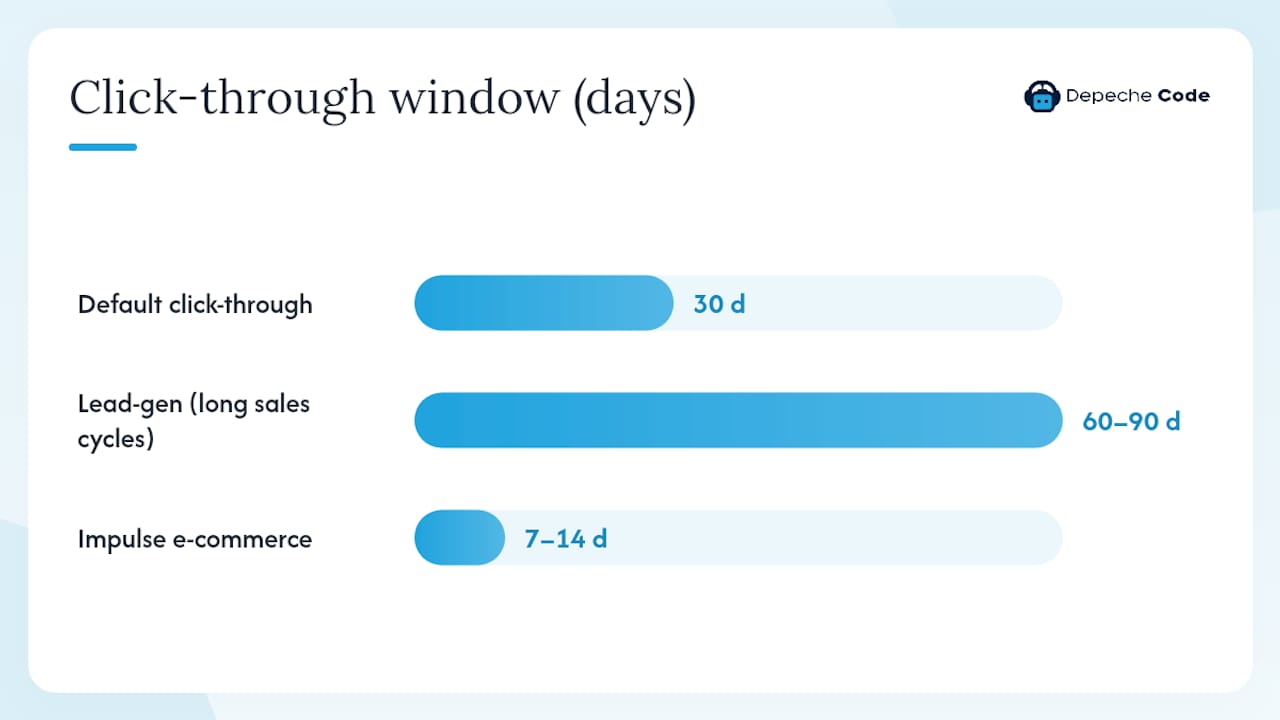
- Conversion window. The default is 30 days for click-through and 1 day for view-through. For lead-gen with long sales cycles, extend the click-through window to 60 or 90 days. For impulse-purchase e-commerce, 7–14 days is often more accurate.
- Attribution model. GA4 defaults to data-driven attribution (DDA) when there is enough data; otherwise it falls back to last click. Google Ads has its own attribution setting. Keep them aligned or your GA4 reports and Ads reports will show different channel credit distributions.
- Channels that can receive credit. Under Admin > Attribution settings in GA4, you control whether only paid channels or both paid and organic channels receive credit for key events. This affects how conversions appear in the Conversion performance report.
| Setting | Default | Where to edit | Recommended action |
|---|---|---|---|
| Counting method | Every | Google Ads | Change to “One” for lead-gen |
| Click-through window | 30 days | Google Ads | Extend to 60–90 days for long sales cycles |
| Attribution model | Data-driven (or last click) | GA4 + Google Ads | Align both to data-driven when eligible |
| Channel credit scope | Paid + organic | GA4 Admin > Attribution | Restrict to paid for Ads-only reporting |
Pro Tip: Time zone mismatches between your GA4 property and your Google Ads account cause conversion counts to differ by a day at month boundaries. Check Admin > Property settings in GA4 and your Google Ads account settings. They should match exactly.
How do you test and validate conversions before trusting them for bidding?
Never turn a conversion on for bidding until you have completed this sequence. One bad conversion definition can skew Smart Bidding for weeks.
- DebugView check. Open Admin > DebugView in GA4. Trigger the conversion action on your site (submit a test form, complete a test purchase). Confirm the event name appears in the stream with the correct parameters. If you see the event but parameters are missing, the tag is firing but the data layer is incomplete.
- GTM Preview or Tag Assistant. Open GTM Preview mode (or the Tag Assistant extension) and trigger the same action. Confirm the GA4 tag fires on the correct trigger. Check that the
event_namevariable matches what you marked in GA4. A tag that fires on the wrong trigger is a silent data quality problem. - Parameter validation. For e-commerce, confirm
transaction_id,value, andcurrencyare all present and correctly formatted. A missingtransaction_idcauses duplicate conversions when users refresh the confirmation page. - Realtime report check. Go to Reports > Realtime in GA4. Trigger the event and watch for it to appear under “Event count by event name.” This confirms the event is reaching GA4’s servers.
- Conversion performance check. After 24–48 hours, go to Advertising > Conversion performance in GA4. The key event should appear with at least one recorded conversion from your test. If it does not, revisit the tag and DebugView.
For multi-step conversions (checkout flows, multi-page forms), trigger each step individually in DebugView to confirm the full funnel fires in sequence. A broken step mid-funnel will show partial data that looks like a low conversion rate when it is actually a tracking gap.
Timing note: GA4 typically reflects events in DebugView and Realtime within seconds. The Conversion performance report and Google Ads can take 24–48 hours to show imported conversions after the first trigger.
Why do GA4 and Google Ads conversion numbers diverge?
They almost always show different numbers. Here is why, and what to do about each cause.
- Attribution model mismatch. GA4 may use data-driven attribution while Google Ads uses last click. The same conversion gets credited to different channels. Fix: align both to data-driven under GA4 Admin > Attribution settings and Google Ads > Tools > Attribution.
- Time zone differences. A conversion at 11:45 PM in one time zone falls on a different date in another. Fix: match time zones in both accounts exactly.
- Conversion window differences. If GA4 counts a conversion 45 days after a click but Google Ads has a 30-day window, GA4 will show more conversions. Fix: set identical windows in Google Ads.
- Counting method differences. “Every” in one platform and “One” in the other will produce different totals for repeat converters. Fix: standardize counting method in Google Ads after import.
- Duplicate conversion definitions. A conversion defined both as a GA4 import and as a separate Google Ads tag fires twice. Fix: audit Tools > Conversions in Google Ads and remove or pause the redundant definition.
- Consent Mode v2 effects. When users decline cookies, GA4 uses modeled conversions to fill gaps. Google Ads may not model the same way. Fix: implement Consent Mode v2 correctly and check that both platforms are receiving consent signals. Review the Adswerve analysis of GA4 and Google Ads conversion alignment for a detailed breakdown of import-related defaults.
- Missing parameters. A
purchaseevent withouttransaction_idcauses duplicate counting on page refreshes. Fix: always pass a unique transaction ID.
To diagnose recent changes, use GA4’s change history: Admin > Account change history. Any recent edit to an event definition or key event toggle will appear here with a timestamp.
Best practices to keep your conversion data accurate over time
Conversion data degrades quietly. A site update breaks a tag. A developer renames an event. Six weeks later, your ROAS looks great because conversions dropped and bids dropped with them. These habits prevent that.
- Establish a naming convention and stick to it. Use lowercase, underscores, and descriptive names:
contact_form_submit,quote_request_complete. Document the schema in a shared spreadsheet. Never rename a live event in production without a migration plan. - Use derived events for conditional logic. If you need to track a specific variant of an existing event, create a derived event in GA4 rather than changing the original event’s name. This preserves historical data.
- Run weekly DebugView spot checks. Pick one conversion per week and trigger it manually. Confirm it still fires with the correct parameters. This catches tag breakage before it affects a full reporting period.
- Review change history monthly. Admin > Account change history shows every modification to your GA4 property. A monthly review catches unauthorized or accidental changes before they compound.
- Use enhanced conversions for first-party data. Enhanced conversions in Google Ads pass hashed first-party data (email, phone) alongside conversion events, improving match rates for users who convert without clicking an ad. This is especially valuable as third-party cookie deprecation continues.
- Document every change. Maintain a living changelog: event name, parameter schema, date of change, reason, and who made it. When a discrepancy appears three months later, this document is the fastest path to the cause.
Pro Tip: Version your events by keeping the original event_name stable and using a parameter (like form_version: v2) to distinguish variants. This way, historical data stays intact and you can filter by version in Explorations without breaking your conversion history.
Where do you find conversion reports in GA4?
The data is there. Finding it quickly is the skill.
- Advertising > Conversion performance. This is the primary report for conversions shared with Google Ads. It shows conversion counts, value, and which key events are feeding your Ads account. Use this to confirm that your imported conversions are recording correctly.
- Acquisition > Traffic acquisition. Shows conversions broken down by channel. Use this to compare how paid search, organic, and direct traffic each contribute to key event completions. The attribution model set in Admin > Attribution settings controls the credit distribution here.
- Engagement > Events. Shows raw event counts. Use this to confirm an event is firing at the expected volume before you mark it as a key event. A sudden drop in event count here is the first signal of a tag problem.
- Admin > Attribution settings. Not a report, but the control panel for how credit is assigned. This is where you set the attribution model and define which channels can receive credit for key events.
- Explorations. For deeper analysis, build a Funnel exploration to see where users drop off between steps, or a Path analysis to understand what actions precede a conversion. These are the reports that answer “why is conversion rate dropping” rather than just “what is the conversion rate.”
For enterprise-level validation, exporting raw event data to BigQuery via the GA4 BigQuery export gives you full event-level data for custom ROAS calculations, deduplication audits, and cross-platform joins with CRM data.
Depechecode’s agency implementation checklist
This is the process Depechecode uses on GA4 conversion implementations, from discovery through post-launch monitoring.
- Scope the conversion events. Map every business KPI to a specific GA4 event. Define the event name, required parameters, and expected trigger conditions before writing a single tag.
- Audit the existing tag implementation. Check for duplicate tags, misfiring triggers, and missing parameters using GTM Preview and Tag Assistant. Document what is already there.
- Build or update the tagging plan. Create a written spec: event name, parameters, trigger, tag type (GA4 event tag via GTM or gtag.js), and the expected parameter values for each scenario.
- Implement in a staging environment. Never push tag changes directly to production. Test in staging with DebugView open.
- QA with DebugView and GTM Preview. Trigger every conversion event. Confirm event names, parameters, and tag firing order. Sign off on a test plan before going live.
- Push to production and validate. Trigger events in production. Check DebugView, Realtime, and Conversion performance within 48 hours.
- Create Google Ads conversions and set bidding status. Import key events into Google Ads, confirm primary vs. secondary status, and align counting method and conversion window.
- Document and hand off. Deliver a changelog, event schema doc, and a monthly monitoring checklist to the client.
Common pitfalls Depechecode avoids: renaming events in production without a migration plan, missing transaction_id on purchase events, and defining the same conversion in both GA4 and a separate Google Ads tag (which causes double-counting). For teams rebuilding a site, maintaining event consistency through a website migration is a separate workstream that needs its own QA plan.
Pro Tip: Require a written test plan sign-off before any change to event schema or conversion settings goes live. A two-sentence email confirmation from the stakeholder is enough. It creates accountability and gives you a paper trail when a discrepancy appears later.
When should you DIY vs. hire an agency for GA4 setup?
The honest answer depends on complexity, not budget.
DIY is reasonable when:
- Your site has fewer than five conversion events, all simple (form submissions, button clicks)
- You have internal developer capacity comfortable with GTM and data layers
- You are not running Smart Bidding campaigns where bad conversion data has immediate budget consequences
- You have time to work through DebugView and Tag Assistant methodically
Bring in an agency when:
- You run e-commerce with custom checkout flows, multiple currencies, or cross-domain tracking
- You need Consent Mode v2 implemented correctly for GDPR or CCPA compliance
- You have tight ROAS targets and cannot afford weeks of bad bidding data while debugging
- You need BigQuery exports for advanced attribution or CRM integration
- Your GA4 property has been inherited and has unknown legacy issues
When evaluating an agency, ask specifically: Have you implemented GA4-to-Google Ads conversion sharing for accounts with existing conversion goals? How do you handle Consent Mode v2 for modeled conversions? Do you export to BigQuery, and if so, what does the QA process look like? An agency that cannot answer those questions concisely has not done it at scale.
Depechecode’s typical engagement runs: audit of existing setup, full implementation with a written tagging plan, QA sign-off, and monthly monitoring. For teams evaluating partners, the SEO partner evaluation guide covers the questions worth asking before signing any digital services contract.
Depechecode handles GA4 implementation so you can focus on results
GA4 conversion tracking done right is not a one-afternoon project. It requires a scoped event plan, a clean tag implementation, careful QA, and ongoing monitoring. Depechecode’s digital team in Orlando handles the full stack: audit, implementation, Google Ads conversion setup, and monthly validation checks so your bidding data stays clean.
What you get with a Depechecode GA4 engagement:
- Full audit of your existing GA4 property and tag implementation
- Written tagging plan with event schema, parameters, and trigger specs
- GTM or gtag.js implementation with DebugView QA sign-off
- Google Ads conversion setup with correct primary/secondary status and bidding alignment
- Monthly monitoring and change-log documentation
Ready to get accurate conversion data working for your campaigns? Review Depechecode’s digital services or contact the team with your current setup details for a scoped quote.
Sources
- GA4 Conversion – Analytics Help
- UA→GA4 Conversions and key events in Google Analytics 4 Legacy – Analytics Help
- Track Key Events with Google Analytics 4 (GA4 Conversions)
FAQ
How do you track conversion rate in Google Analytics 4?
Go to Reports > Advertising > Conversion performance to see conversion counts by key event. Divide conversions by sessions from the Traffic acquisition report to calculate conversion rate, or build a custom Exploration with both metrics in a single view.
How do you set up conversion tracking in Google Analytics 4?
Confirm your GA4 tag is firing, then go to Admin > Events, find the event you want to track, and toggle “Mark as key event.” To use it in Google Ads, link your GA4 property to Google Ads and create a conversion action from the key event via Admin > Events or Google Ads > Tools > Conversions > Import.
What is the difference between GA4 and Google Ads conversion tracking?
GA4 key events measure important actions across all channels for analytics and audience building. Google Ads conversions are imported from those key events and are used specifically for Smart Bidding and Ads reporting. Google is aligning the two definitions to reduce discrepancies, but some settings like counting method and conversion window remain editable only in Google Ads.
How do you check conversions in GA4?
Go to Reports > Advertising > Conversion performance for a summary of all key events shared with Google Ads. For raw event counts, check Reports > Engagement > Events. Attribution settings that control how credit is distributed across channels live under Admin > Attribution settings.
Why do GA4 and Google Ads show different conversion numbers?
The most common causes are mismatched attribution models, different time zones, different conversion windows, and duplicate conversion definitions. Check that both platforms use the same attribution model and time zone, and audit Google Ads > Tools > Conversions to confirm you do not have the same action defined twice.